The best video editing software for Mac in 2026 is DaVinci Resolve for professional-grade results at no cost, Final Cut Pro for the fastest native macOS performance, and iMovie for beginners. Adobe Premiere Pro remains the industry standard for cross-platform teams. The right pick depends on your skill level, budget, and whether you need collaboration tools.
Simo Elalj, CEO at RefurbMe Last updated · 13 min reading time
Apple Silicon chips, now spanning the M1 through the M5, power the entire Mac lineup and render video up to 2x faster than their Intel predecessors, so even an entry-level M-series Mac running macOS Tahoe handles 4K editing comfortably. Below are the 7 best video editing apps for Mac in 2026, with current pricing, pros, cons, and the type of editor each one suits.
The 7 best video editing software for Mac at a glance (2026)
Template-driven short-form editing with built-in AI captions
Free | $9.99/monthly or $89.99/yearly (Pro)
How did we review these apps?
We tested each application on Apple Silicon Macs running macOS Tahoe (macOS 26) and evaluated them across eight criteria. Our goal was to identify the best video editing software for Mac users at every skill level: from first-time editors to working professionals.
User interface: The intuitiveness and cleanliness of the software’s UI, ensuring tools are easily accessible and workflows are seamless.
Ease of use: How beginner-friendly each app is, alongside the availability of tutorials or in-app guidance.
Feature set: The range of editing tools, special effects, transitions, AI-powered features, and support for various file formats and resolutions (including 4K and 8K).
Performance: Speed and responsiveness during intensive tasks like rendering and exporting, particularly on Apple Silicon chips.
Compatibility with macOS: Each software’s performance with macOS Tahoe as well as slightly older versions of macOS to gauge versatility.
Price: We directly compared the cost against the features offered, factoring in both one-time purchases and subscription costs.
Customer support: Adequate support resources such as documentation, community forums, and customer service responsiveness.
Updates and upgrades: The frequency of updates and whether developers are actively shipping new features, particularly AI-driven tools.
🥇 Best for: High-quality video production
⭐ Highlight: Advanced color grading and real-time team collaboration
💲 Price: Free | $295 (one-time purchase)
✅ Pros:
Professional-grade editing, color correction, and audio tools
Clear, well-organized interface
Unlimited video tracks and supports 4K XAVC-S format
Uploads directly to YouTube
❌ Cons:
Steep learning curve
Requires robust system resources
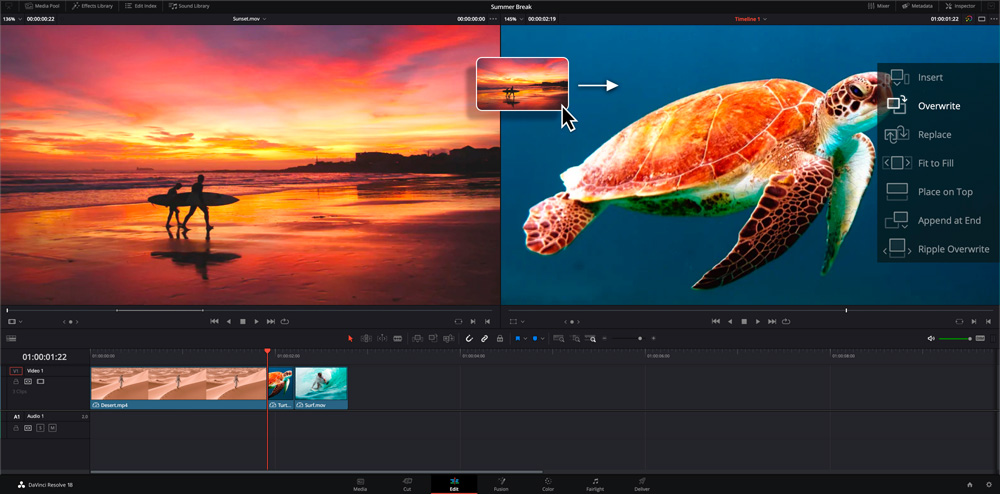
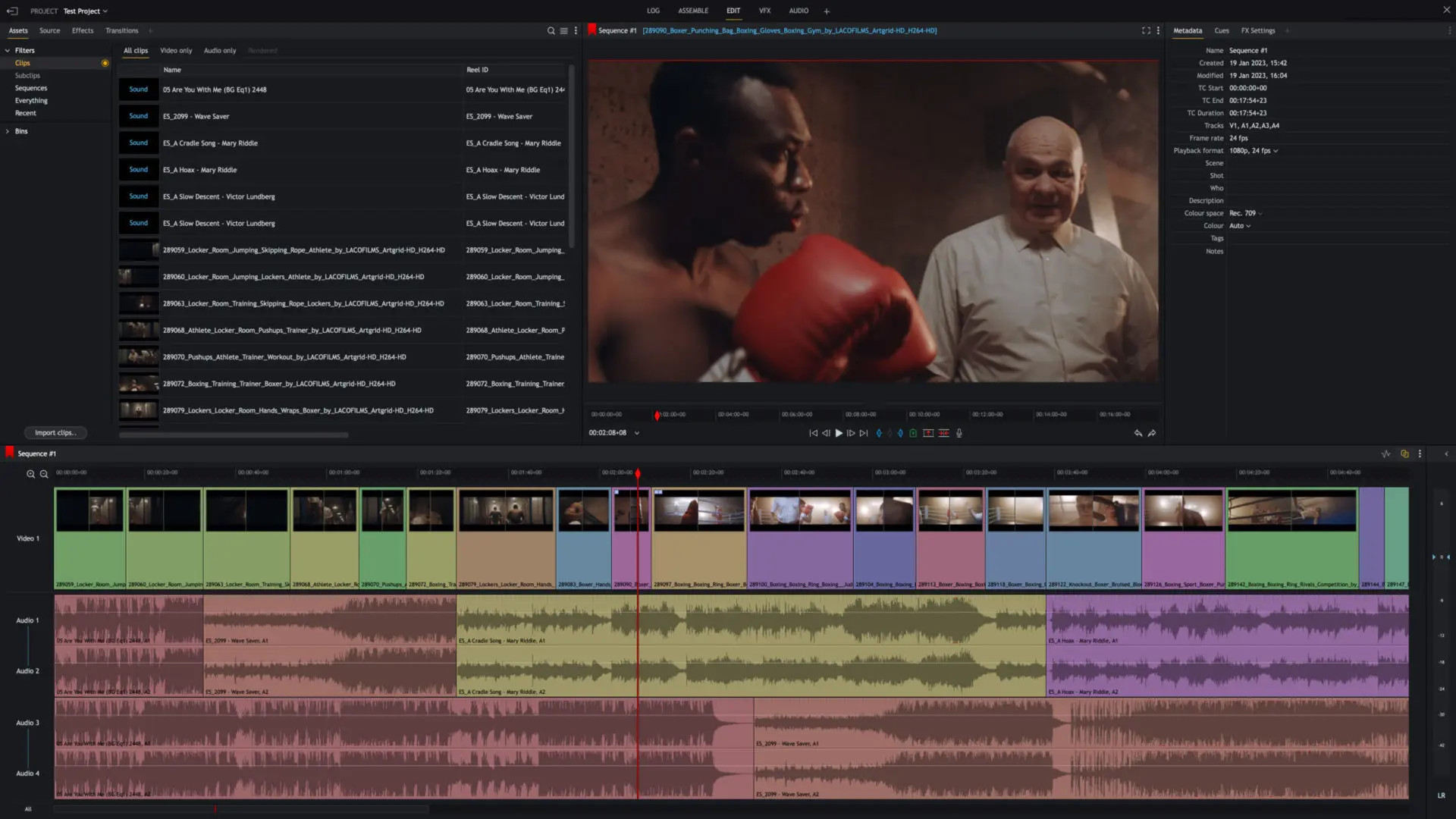
DaVinci Resolve is the best free video editor for Mac in 2026, combining professional editing, color grading, visual effects, and audio in one app at no cost. Developed by Blackmagic Design, the current DaVinci Resolve 21 release (shipped June 2026) folds editing, color correction, visual effects (via Fusion), and audio post-production (via Fairlight) into a single application. Hollywood productions including Dune and Elvis have relied on its color grading tools, which remain the industry benchmark. The free version delivers remarkable functionality; most users will never need the paid Studio tier. However, the breadth of features means a steeper learning curve, and the software runs best on Macs with at least 16 GB of unified memory. For editors willing to invest the time, DaVinci Resolve offers a professional toolkit at no cost.
🥇 Best for: Advanced users
⭐ Highlight: Optimized for macOS with advanced media organization tools
💲 Price: $299.99 (one-time purchase) | $12.99/monthly or $129/yearly via Apple Creator Studio
✅ Pros:
Magnetic, trackless timeline for intuitive editing
Strong organization with libraries, ratings, and tagging
Multicam editing for complex projects
Outstanding performance, especially on M1 through M5 Macs
Plug-in support expands creative possibilities
❌ Cons:
Only runs on Apple hardware, limiting accessibility
Less intuitive import and export than competitors
Fewer options for collaboration compared to Adobe Premiere Pro
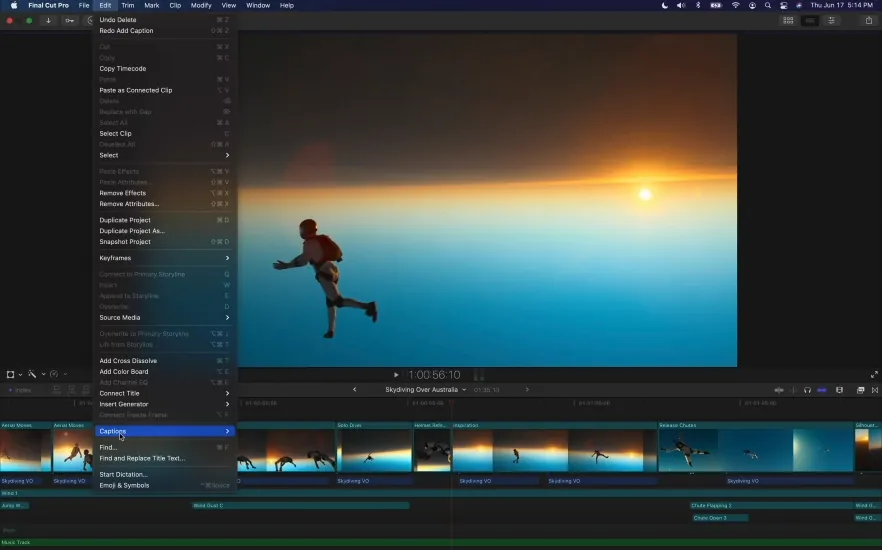
Final Cut Pro remains Apple’s flagship editing suite, purpose-built for macOS and optimized to squeeze every ounce of performance from Apple Silicon. Its magnetic timeline eliminates the frustration of track-based editing, letting you focus on the story rather than clip management. The application supports ProRes RAW, 360-degree video, and spatial video for Apple Vision Pro. Final Cut Pro is still sold as a one-time $299.99 purchase, and Apple now also bundles it inside the Apple Creator Studio subscription at $12.99 per month or $129 per year, which gives new users a lower barrier to entry alongside Motion and Compressor. While collaboration features still lag behind Adobe Premiere Pro, Final Cut Pro’s speed and deep macOS integration make it the natural choice for solo editors and small production teams working exclusively on Apple hardware.
🥇 Best for: Beginners
⭐ Highlight: Pre-installed on Mac, simple and intuitive interface
💲 Price: Free
✅ Pros:
Intuitive, user-friendly interface
Quality chroma-keying capabilities
Exclusive support for iPhone recording features
Impressive built-in movie templates
❌ Cons:
No media tagging feature
Limited to two video tracks
Apple iMovie is the obvious starting point for anyone new to video editing on a Mac. It ships free with every Mac and offers a surprisingly capable set of tools wrapped in a clean, drag-and-drop interface. The Storyboard feature guides beginners through the editing process step by step, while the Trailers tool lets you assemble Hollywood-style previews in minutes. iMovie supports 4K resolution, background audio ducking, and direct export to YouTube and Vimeo. It lacks multicam editing and limits you to two video tracks, but for personal projects, school assignments, and quick social media clips, it delivers polished results with minimal effort. When you’re ready for more power, your iMovie projects transfer directly into Final Cut Pro.
🥇 Best for: Professional video editing and collaboration
⭐ Highlight: Industry standard with powerful editing tools and integrations
💲 Price: $22.99/monthly (annual, paid monthly)
✅ Pros:
Extensive library of effects
Seamless integration with Adobe apps
Advanced color grading and multicam support
Robust collaboration features, such as integration with Frame.io
Wide range of third-party plug-in support
AI video editor
❌ Cons:
The subscription model can be costly
The steep learning curve for nonprofessionals
Some features require additional Adobe applications
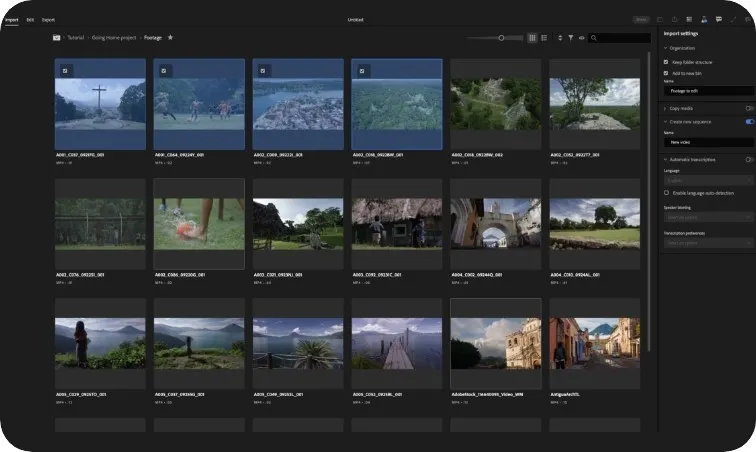
Adobe Premiere Pro is the industry standard for professional video editing on Mac, and for good reason. It handles virtually any format you throw at it, from smartphone footage to RED RAW cinema files, and its multicam editing supports an unlimited number of camera angles. The deep integration with After Effects, Audition, and Frame.io streamlines collaborative workflows, making it the default choice for production teams that span platforms. Adobe has also invested heavily in AI-powered features through its Firefly toolkit, including automated scene detection, text-based editing, and generative fill for video. The trade-off is a recurring subscription cost and a learning curve that can feel steep for casual users. For professionals and dedicated enthusiasts, however, Premiere Pro remains the most versatile editing platform available on macOS.
🥇 Best for: Intermediate editors & enthusiasts
⭐ Highlight: Extensive visual effects and templates, AI integration
💲 Price: $74.99/yearly
✅ Pros:
Fast project rendering for efficient workflow
User-friendly interface with intuitive design
Includes a wealth of effects and AI tools for creativity
Features multicam and motion tracking capabilities
Provides screen recording functionality
❌ Cons:
The vast number of options can be overwhelming for beginners
Higher learning curve compared to more basic editing software
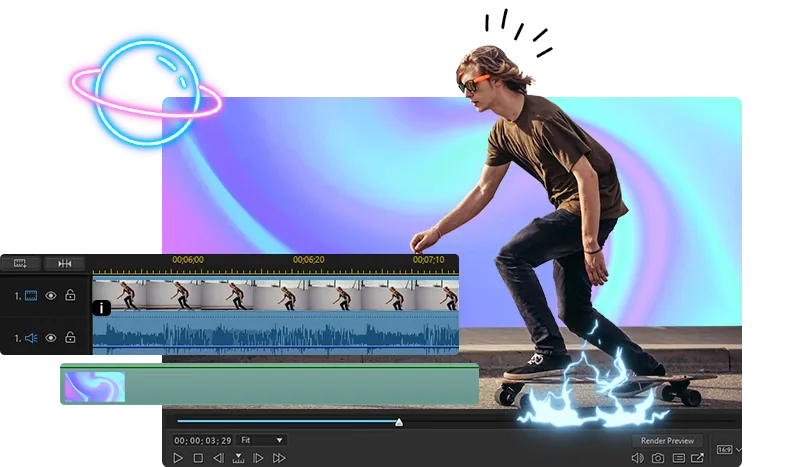
CyberLink PowerDirector 365 occupies a sweet spot between consumer simplicity and professional depth. Its AI-powered tools, including object detection, sky replacement, and speech enhancement, let intermediate editors achieve results that once required dedicated plugins. The application also ships with a large library of royalty-free stock footage, templates, and effects through its subscription model. Multicam editing, motion tracking, and 4K rendering are all included, and CyberLink regularly pushes updates with new creative assets. The sheer volume of options can overwhelm newcomers, but for enthusiasts who want advanced features without committing to Adobe’s ecosystem, PowerDirector 365 represents strong value.
🥇 Best for: Both novice and seasoned video editors
⭐ Highlight: Multi-point editing with advanced trimming tools
💲 Price: Free | Plans start at $9.99/monthly
✅ Pros:
Intuitive user interface suitable for all skill levels
Robust video and audio editing capabilities
Advanced color correction and visual effects options
Cross-platform compatibility, including Mac, Windows, and Linux
Strong community support with a plethora of learning resources
❌ Cons:
The free version has limitations on output formats
It can be resource-intensive, requiring a powerful Mac for optimal performance
Lightworks has a pedigree few competitors can match: the software was used in the editing of films like The Wolf of Wall Street and Pulp Fiction. Today, it serves a broad audience through its tiered pricing model: the free version handles most editing tasks and exports up to 720p, while the paid Create and Pro tiers unlock 4K export, additional effects, and Boris FX integration. The interface is cross-platform (macOS, Windows, and Linux), making it a practical choice for editors who work across operating systems. Lightworks also maintains an active community forum and an extensive library of video tutorials. For users who want professional trimming tools and multi-point editing without paying for a full Adobe subscription, Lightworks remains a compelling option.
🥇 Best for: Mobile editing & social media creators
⭐ Highlight: Template-driven short-form editing with built-in AI captions
💲 Price: Free | $9.99/monthly or $89.99/yearly (Pro)
✅ Pros:
Free tier covers timeline editing, templates, transitions, and auto-captions
Native Mac app that runs on Apple Silicon and syncs projects to mobile
Large library of social-ready templates for TikTok, Reels, and Shorts
Built-in AI tools for captions, background removal, and voice cleanup
❌ Cons:
Geared to vertical short-form clips rather than long-form or cinema work
Owned by ByteDance, so some creators weigh ongoing US availability questions
CapCut replaces Adobe Premiere Rush, which Adobe removed from sale on September 30, 2025 and will stop supporting on September 30, 2026. CapCut strips editing down to the essentials and wraps them in a template-first interface built for speed. It targets social media creators and vloggers who need to produce vertical content on a tight schedule. Projects sync across Mac, iPhone, and iPad, so you can start a clip on your phone and finish it on your desktop. The free tier handles core editing, captions, and exports, while CapCut Pro at $9.99 per month (or $89.99 per year on the App Store) unlocks the full AI toolkit and premium effects. The trade-off for this simplicity is a feature set tuned to short-form social video rather than multicam or color-critical projects. For quick turnaround content, CapCut delivers polished results with minimal friction.
Which video editing software should you choose?
The right editor depends on where you are in your creative journey. For beginners, iMovie provides a gentle introduction at no cost. Intermediate editors will find CyberLink PowerDirector 365 and Lightworks offer strong feature sets without a steep price tag. Professionals working in collaborative environments will gravitate toward Adobe Premiere Pro, while solo editors on Apple hardware will appreciate Final Cut Pro’s speed and macOS integration. And for anyone who wants professional-grade color grading and audio tools without spending a penny, DaVinci Resolve is hard to beat.
The hardware underneath your editor matters as much as the app. Video editing, particularly 4K and 8K workflows, demands fast storage, ample unified memory, and a capable GPU. Apple Silicon Macs, from the M1 through the M5, are purpose-built for these workloads, and for fast social edits a free tool like CapCut pairs well with even an entry-level M-series MacBook Air.
If the price of a new MacBook feels daunting, a refurbished MacBook can deliver the same performance at a significantly lower cost. Every listing on RefurbMe includes details on condition, warranty coverage, and pricing across multiple refurbishers, so you can compare and find the best deal.
Browse all available Apple Silicon MacBooks below:
from $409in Fair Refurbished MacBook with Apple Silicon Chip · 433 configurations at 6 sellers. Checked Oct 26, 8:48 AM EDT.
What is the best video editor for beginners on Mac?
iMovie is the best video editor for beginners on Mac. It comes pre-installed on every Mac, uses a drag-and-drop interface, and includes guided tools like Storyboard mode that walk new editors through the process step by step. It supports 4K resolution and exports directly to YouTube and Vimeo, all at no cost.
Is Mac good for video editing?
Yes. Macs, particularly models with Apple Silicon chips (M1, M2, M3, M4, and M5), are among the best machines for video editing. The unified memory architecture lets the CPU and GPU share resources efficiently, which accelerates rendering and playback. macOS also offers exclusive access to Final Cut Pro and iMovie, two of the most popular editing applications.
What editing software do YouTubers use on Mac?
Most YouTubers on Mac use one of four applications: Final Cut Pro for its speed and magnetic timeline, Adobe Premiere Pro for cross-platform collaboration, DaVinci Resolve for professional color grading at no cost, or iMovie for quick and simple edits. Social-first creators increasingly use CapCut for its template-driven short-form workflow and mobile-to-desktop syncing.
What is the best free video editing software for Mac?
The best free video editing applications for Mac in 2026 are iMovie, DaVinci Resolve, and CapCut. iMovie suits beginners who want a simple experience, DaVinci Resolve 21 covers professional color correction, audio (Fairlight), and visual effects (Fusion) in its free tier, and CapCut handles fast social clips with templates and AI captions.
How much RAM do I need for video editing on a Mac?
For 1080p editing, 8 GB of unified memory is sufficient for most applications. For 4K workflows, especially in DaVinci Resolve or Premiere Pro, 16 GB is the recommended minimum. Professional editors working with multicam, RAW footage, or complex effects should consider 32 GB or more.
How can I learn video editing quickly?
Start with a beginner-friendly program like iMovie and work through short projects, such as a 60-second travel clip or a simple vlog. YouTube channels like Justin Odisho and Casey Faris offer free, structured tutorials for every major editing application, and platforms like Skillshare and Udemy provide deeper courses. Aim to complete one small project per week and you will build confidence within a month.
Last updated: Jun 11, 2026 ·
First published: Feb 26, 2025
Simo Elalj
CEO and Founder at RefurbMe. I made this project back when I was 15 when I had to wake up at 2am to buy my own refurbished Macbook Pro. Passionate about circular economy, great UX and goats.


![7 Best Video Editing Software for Mac [2026]](https://d1tydw6090df56.cloudfront.net/blog-images/best-video-editing-sofware-for-mac.webp)