


Your iPad is a powerful companion for work, creativity, and entertainment, but no battery lasts forever. Apple rates every iPad it currently sells for up to 10 hours of web browsing on Wi-Fi, and designs the battery to keep 80% of its original capacity through 1,000 complete charge cycles. The 30 tips below are how you get closer to those numbers, whether you own an iPad Pro (M5), an iPad Air (M4), an iPad (A16), an iPad mini (A17 Pro), or a refurbished model from an earlier generation.
Table of contents
- Quick answer: what saves the most iPad battery
- 1. Turn on or automate Low Power Mode
- 2. Check battery-draining apps
- 3. Turn off unnecessary location services
- 4. Use auto-brightness
- 5. Activate Dark Mode
- 6. Reduce transition effects
- 7. Prevent alerts from waking your iPad
- 8. Turn off Ask to Join Networks, not Wi-Fi itself
- 9. Turn off cellular data
- 10. Disable AirDrop
- 11. Turn off Background App Refresh
- 12. Turn on Reduce White Point
- 13. Adjust auto-lock
- 14. Limit notifications
- 15. Turn off Fetch New Data in Mail
- 16. Turn off Raise to Wake
- 17. Pause iCloud Photos sync
- 18. Turn off Equalizer
- 19. Disable Handoff
- 20. Disable automatic downloads and app updates
- 21. Limit widgets
- 22. Use Safari instead of Chrome
- 23. Activate Airplane Mode in low signal areas
- 24. Disable diagnostics sharing
- 25. Avoid extreme temperatures
- 26. Remove the case while charging
- 27. Update to the latest iPadOS
- 28. Restart your iPad
- 29. Complete a factory reset
- 30. Power off at least once a week
- How to check your iPad battery health and cycle count
- Final words
- FAQ
Quick answer: what saves the most iPad battery
Four settings do most of the work: Low Power Mode, auto-brightness, Background App Refresh, and a shorter auto-lock interval. The display is the largest single power draw on any iPad, so anything that dims it or shortens its on-time pays back fastest.
Two habits protect long-term health rather than today's charge. Keep the iPad out of ambient temperatures above 95° F (35° C), which Apple says can permanently reduce battery lifespan, and turn on the 80% charge limit if your model supports it.
One popular tip to skip: switching Wi-Fi and Bluetooth off. Apple's guidance is that both "are designed to draw minimal power from the battery when they aren't connected to a network or accessory" and that you should keep them on.
RefurbMe's tracking of the standard iPad line shows a median 115 days between Apple releasing a model and its first appearance in stock refurbished, at a median 89% discount across every iPad model we have tracked (as of July 2026, RefurbMe iPad stats). That family median stretches back to iPads from the early 2010s, so it is not what you save on a current model. It does explain why a refurbished iPad usually arrives with a battery that has already done real work.
1. Turn on or automate Low Power Mode
Low Power Mode reduces the power your iPad uses when the battery gets low, and on iPad models with ProMotion displays it limits the display refresh rate to 60 frames per second. Apple notes that some tasks may run more slowly while it is on.
Enable it in Settings > Battery > Low Power Mode, or add a toggle to Control Center for quick access. It switches itself off once the iPad charges back to 80% or higher, so for hands-free savings open the Shortcuts app, create an automation triggered by a battery level such as 50%, and set it to turn Low Power Mode back on.
2. Check battery-draining apps
Go to Settings > Battery and scroll down for today's usage, or tap View All Battery Usage and pick a day to look back over the last eight days. The Daily Usage section shows your usage in blue when it is normal for this time of day and in orange when it is higher than usual, and it names the top three apps or system activities behind the increase.
Under App and System Activity, each entry breaks down into on-screen time, background activity, weak cellular coverage, and notifications. If an app is burning through battery in the background, restrict its permissions or remove it altogether.
3. Turn off unnecessary location services
Location tracking is one of the most persistent background drains on any iPad. Apps that continuously ping your GPS consume power even when you are not actively using them.
Go to Settings > Privacy & Security > Location Services. Tap each app and choose Never or While Using the App for anything that does not genuinely need your location. Also scroll to System Services at the bottom and disable non-essential system-level location features.
4. Use auto-brightness
Auto-brightness adjusts your screen based on ambient light, dimming it in darker rooms and brightening it outdoors. The display is the largest power draw on any iPad, so this single setting can noticeably extend battery life.
To enable it, go to Settings > Accessibility > Display & Text Size and toggle Auto-Brightness on.
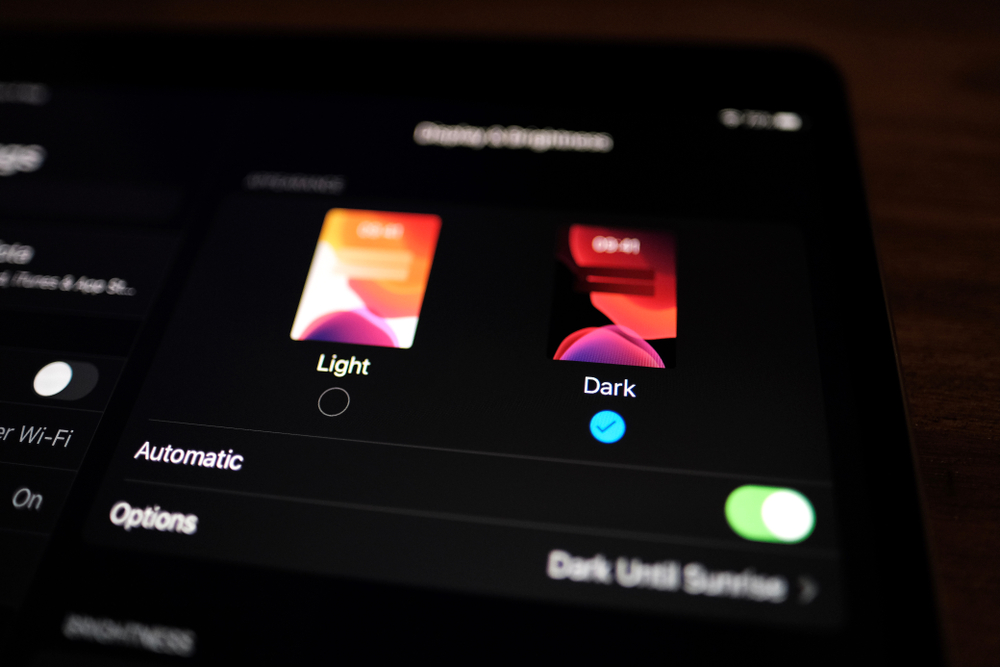
5. Activate Dark Mode
Dark Mode replaces bright white backgrounds with darker tones. The battery saving is real only on the Ultra Retina XDR tandem OLED panels used by the iPad Pro (M4) and iPad Pro (M5), where dark pixels draw almost no power. Every other iPad Apple currently sells, the iPad Air (M4) included, uses an LED-backlit Liquid Retina display whose backlight stays lit either way, so treat Dark Mode there as a comfort setting rather than a battery fix.
To activate Dark Mode, go to Settings > Display & Brightness and select Dark. You can also add a Dark Mode toggle to Control Center, or schedule it automatically under Settings > Display & Brightness > Options.
6. Reduce transition effects
Animations and parallax effects require extra GPU processing. Go to Settings > Accessibility > Motion and toggle on Reduce Motion. On an iPad Pro, whose ProMotion display runs adaptive refresh rates from 10Hz to 120Hz, you can also enable Limit Frame Rate in the same menu to cap the display at 60 Hz.
7. Prevent alerts from waking your iPad
Every push notification wakes your iPad's screen and processor, and those small jolts add up throughout the day. Go to Settings > Notifications, review each app, and disable alerts for anything non-essential. Use Scheduled Summary to batch notifications into a digest delivered once or twice a day.
8. Turn off Ask to Join Networks, not Wi-Fi itself
This is the tip most battery guides get backwards. Apple says to leave Wi-Fi and Bluetooth on: both "are designed to draw minimal power from the battery when they aren't connected to a network or accessory", and some iPad features stop working without them.
What does help is cutting the repeated scanning. Go to Settings > Wi-Fi and turn off Ask to Join Networks so your iPad stops hunting for open networks, and unpair Bluetooth accessories you no longer use rather than disabling the radio. Airplane Mode remains the right tool in genuinely dead-signal areas, covered in tip 23.
9. Turn off cellular data
Cellular radios consume considerably more power than Wi-Fi. If your iPad has a cellular plan and you are near a Wi-Fi network, switching off cellular data can save meaningful battery. Go to Settings > Cellular and toggle Cellular Data off.
If you need to stay connected, look under Settings > Cellular > Cellular Data Options. Data Mode > Low Data Mode pauses automatic updates and background tasks whenever the iPad is off Wi-Fi, and on 5G models Voice & Data > 5G Auto turns on Apple's Smart Data mode, which falls back to LTE when 5G is not noticeably faster.
10. Disable AirDrop
AirDrop relies on both Bluetooth and Wi-Fi to discover nearby devices. Even when you are not sharing anything, keeping AirDrop set to "Everyone" means your iPad is constantly listening for connections. Go to Settings > General > AirDrop and select Receiving Off or Contacts Only.
11. Turn off Background App Refresh
Background App Refresh allows apps to update their content even when you are not using them. It is one of the biggest silent battery drains on any iPad. Go to Settings > General > Background App Refresh and turn it off entirely, or selectively disable it for streaming, social media, and news apps while keeping it on for messaging or navigation.
12. Turn on Reduce White Point
Reduce White Point lowers the intensity of bright colors on screen, making the display dimmer than the standard brightness slider alone allows. Go to Settings > Accessibility > Display & Text Size > Reduce White Point and adjust the slider to your preferred level.
13. Adjust auto-lock
The display is the biggest battery consumer on any iPad, and auto-lock decides how long it stays lit after you stop touching it. Go to Settings > Display & Brightness > Auto-Lock and choose the shortest duration that suits your workflow. Two minutes instead of five costs almost nothing in convenience and strips a lot of needless screen-on time out of a week.
14. Limit notifications
Each notification lights up the screen and wakes the processor. Go to Settings > Notifications, tap any app, and adjust its alert style or turn off notifications entirely. For apps you want to hear from occasionally, choose Deliver Quietly so alerts go straight to Notification Center without waking the screen.
15. Turn off Fetch New Data in Mail
Push email keeps a persistent background connection that wakes your iPad every time a new message arrives. Go to Settings > Apps > Mail > Mail Accounts > Fetch New Data and toggle Push off. Select Manually under the Fetch schedule for maximum savings, or Hourly if you still want periodic updates.
16. Turn off Raise to Wake
Raise to Wake lights up your iPad screen every time you pick it up or shift it. Go to Settings > Display & Brightness and toggle off Raise to Wake. You can still wake your iPad by pressing the power button or tapping the screen.
17. Pause iCloud Photos sync
iCloud Photos continuously syncs your entire photo library in the background, consuming both power and data. Go to Settings > [Your Name] > iCloud > Photos and turn off Sync this iPad. You can always upload photos manually or over Wi-Fi when battery is not a concern.
18. Turn off Equalizer
The Music app's equalizer applies real-time audio processing that requires extra CPU cycles. Go to Settings > Apps > Music > EQ and select Off.
19. Disable Handoff
Handoff lets you start a task on one Apple device and continue it on another. While convenient, it requires a constant Bluetooth background connection. Go to Settings > General > AirPlay & Handoff and toggle off Handoff.
20. Disable automatic downloads and app updates
Automatic downloads and app updates run in the background and consume both data and battery. Go to Settings > App Store and toggle off App Downloads and App Updates under Automatic Downloads. Update apps manually when connected to Wi-Fi and a charger.
21. Limit widgets
Widgets refresh periodically to display up-to-date information, and each refresh consumes a small amount of power. Remove any widgets you do not regularly check by long pressing them and choosing Remove Widget. Keep only widgets that provide genuinely useful at-a-glance information.
22. Use Safari instead of Chrome
Safari is built for Apple hardware and is the browser Apple's own battery figures are measured with. Chrome tends to hold more tabs and background processes in memory. If battery life is a priority, make Safari your default browser.
23. Activate Airplane Mode in low signal areas
When cellular signal is weak, your iPad works harder to maintain a connection, draining the battery rapidly. Swipe down from the top-right corner to open Control Center and tap the airplane icon. You can then re-enable Wi-Fi separately if a local network is available.

24. Disable diagnostics sharing
Your iPad periodically collects and transmits diagnostics data to Apple and third-party developers. Go to Settings > Privacy & Security > Analytics & Improvements and toggle off Share iPad Analytics.
25. Avoid extreme temperatures
Lithium-ion batteries are sensitive to temperature extremes. Apple says iPad performs best in ambient temperatures of 62° to 72° F (16° to 22° C) and warns that using or charging it above 95° F (35° C) can permanently reduce battery lifespan. Cold is less damaging: available charge drops temporarily and recovers once the iPad warms back up.
The full designed operating range is 32° to 95° F (0° to 35° C), so never leave an iPad in a parked car.
26. Remove the case while charging
A battery warms as it charges, and heat is what shortens its life, which is why iPad gradually reduces the charging current as the battery approaches full. If your iPad still gets noticeably warm inside a thick case while plugged in, take the case off.
Better still, cap the charge. Open Settings > Battery > Battery Health and turn on 80% Limit on any supported model. Apple lists iPad Pro (M4) and later, iPad Air (M2) and later, iPad mini (A17 Pro), and iPad (A16). Read those as floors rather than as current models: the feature covers the whole current lineup and also the iPad Pro (M4), iPad Air (M2), and iPad Air (M3) that are now common on the refurbished market. On older iPads, just unplug once the charge is full.
27. Update to the latest iPadOS
Apple ships battery optimizations and power management improvements in iPadOS updates, and the current release is iPadOS 27, released on September 14, 2026. Running an outdated version means missing out on efficiency gains that directly affect daily battery life. Note that battery life may dip temporarily after a major update while background indexing completes. Check for updates in Settings > General > Software Update.
28. Restart your iPad
A restart clears cached processes, stops runaway background tasks, and resets memory allocations. If your iPad's battery seems to be draining faster than usual, a quick reboot often resolves the issue without any other changes.
29. Complete a factory reset
If none of the above tips solve persistent battery drain, a factory reset can eliminate corrupted settings or rogue processes. Back up your data first, then go to Settings > General > Transfer or Reset iPad and select Erase All Content and Settings. After restoring from a backup, monitor battery usage for a day or two to confirm the issue is resolved.
30. Power off at least once a week
Powering down your iPad completely at least once a week gives the system a chance to clear temporary files and reset background processes that accumulate over time. It also helps recalibrate the battery gauge for more accurate charge readings.
Learn more: How Long Do iPads Last?
How to check your iPad battery health and cycle count
No setting can fix a worn-out cell, so check the hardware before you keep tuning software. On supported models, go to Settings > Battery > Battery Health, where iPad reports its capacity, battery health, cycle count, manufacture date, and first use date. Apple designs iPad batteries to keep 80% of their original capacity through 1,000 complete charge cycles, so a device well past that mark will run short however you configure it.
That screen is also the first thing to open on a secondhand iPad. A high cycle count next to a recent manufacture date tells you the device was worked hard, which is exactly the inspection our guide to buying a used iPad walks through.
Final words
These 30 tips cover everything from quick settings tweaks to long-term battery health habits. Start with the highest-impact changes: Low Power Mode, auto-brightness, Background App Refresh, and auto-lock. Work your way through the rest as needed.
If the battery is the problem rather than the settings, a replacement iPad costs less than most people expect. RefurbMe compares live prices from Back Market (US and UK), Gazelle (US), Orchard (Canada), MusicMagpie (UK), Amazon Renewed, and eBay Refurbished, and checks them against Apple's own refurbished store, so you can see which seller is genuinely cheapest for the model you want. Read our guide to the best refurbished iPads, compare where to buy a refurbished iPad, or browse current deals on refurbished iPads, which start at $59 as of July 30, 2026.

16GB storage
Silver
2013 release

32GB storage
Silver
2016 release

32GB storage
Space Gray
2019 release
FAQ
Last updated: Sep 15, 2026 · First published: Nov 12, 2024


