The best iPhone widgets in 2026 span productivity, weather, fitness, travel, and customization, and the right combination can turn your home or lock screen into a genuinely useful dashboard. Apple has expanded widget capabilities across every major iOS release since iOS 14. Lock Screen widgets arrived in iOS 16, interactive widgets in iOS 17, and StandBy added a full-screen, glanceable widget view when the iPhone charges on its side. iOS 26 (released September 2025) keeps that momentum. Third-party developers have kept pace, offering widgets that go far beyond what Apple builds in. Below, you will find the 20 best iPhone widget apps for 2026, along with step-by-step instructions for adding and creating custom widgets.
Simo Elalj, CEO at RefurbMe Last updated · 15 min reading time
You do not need the newest iPhone to run a full widget setup. Any iPhone on iOS 16 or later supports Lock Screen widgets, and iOS 17 or later adds interactive ones. According to RefurbMe tracking, a new iPhone reaches the refurbished market a median of 67 days after Apple announces it (as of October 2026), so waiting a couple of months for a refurbished iPhone is often enough to buy a widget-ready model at a lower price. See the live figure on the RefurbMe iPhone stats page.
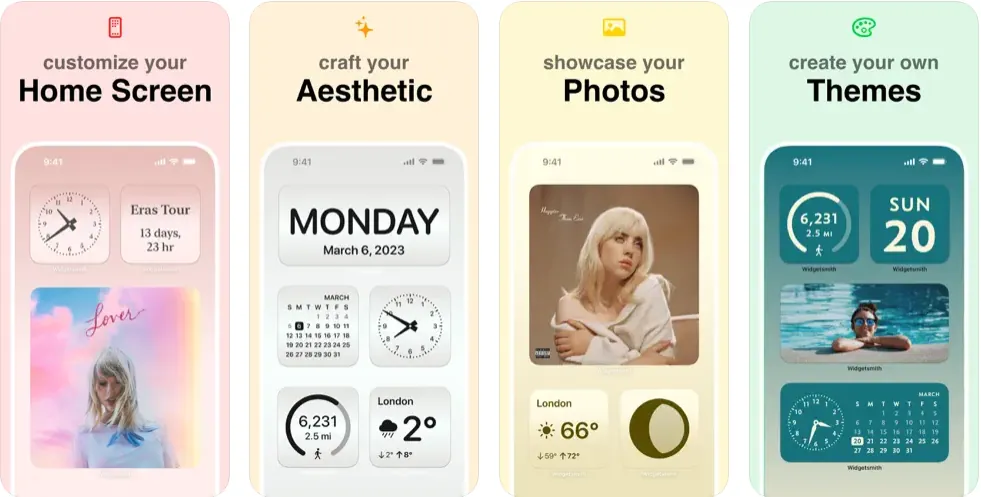
Widgetsmith remains one of the most popular widget apps for iPhone, and for good reason. It offers a deep library of customizable widgets for your home and lock screens, covering everything from weather and calendars to photos and astronomy data. A standout feature is dynamic scheduling: you can set a widget to show weather in the morning, your calendar during the workday, and activity ring progress in the evening. Widgetsmith also integrates with Apple Health and works on Apple Watch, making it a strong all-in-one choice. For more Apple Watch-native options that pair well with Widgetsmith, see our guide to the best Apple Watch apps.
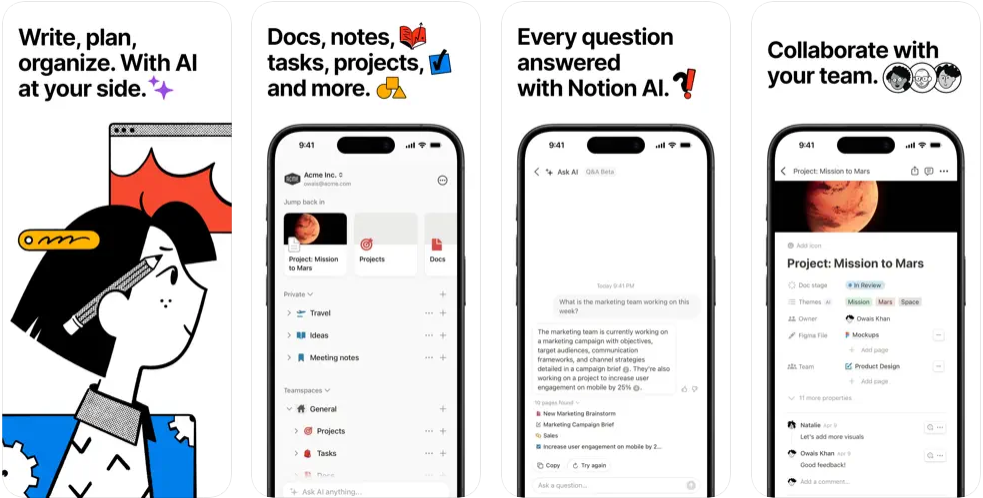
Notion is one of the best productivity apps you can find and one of the most intuitive to use. It has integrated AI to save time and effort in daily tasks. Collaborate in real time, add media, organize your information and plans, and sync everything between devices. In addition, you can sync Notion with multiple apps like Google Calendar and Todoist using 2sync. If AI-powered tools are your focus, our roundup of the best AI apps for iPhone covers more options worth pairing with Notion.
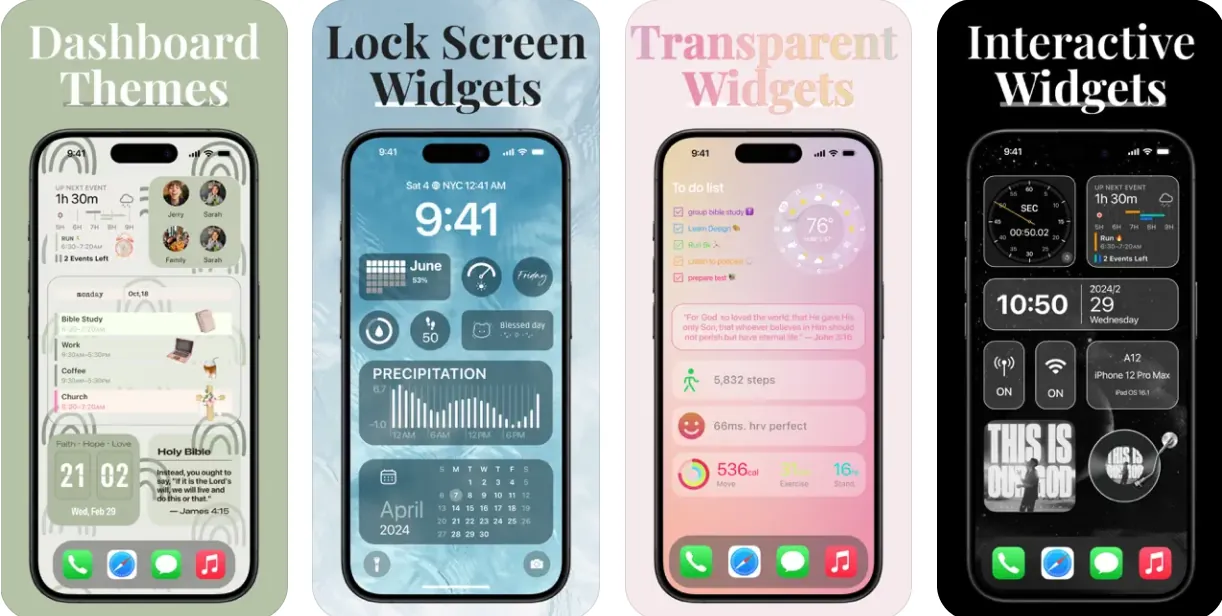
ScreenKit is a standout choice among the best widgets for iPhone, offering extensive customization for iPhone and iPad screens. With over 10 million users and excellent reviews, this app lets users effortlessly personalize their home and lock screens with a wide range of themes, interactive widgets, and app icons. ScreenKit is user-friendly, requiring no additional apps or shortcuts for installation. If you use an iPad alongside your iPhone, our guide to the best apps for iPad highlights more cross-device picks.
📌 Category: Utility 💲 Price: Free | Pro Version: $2.99
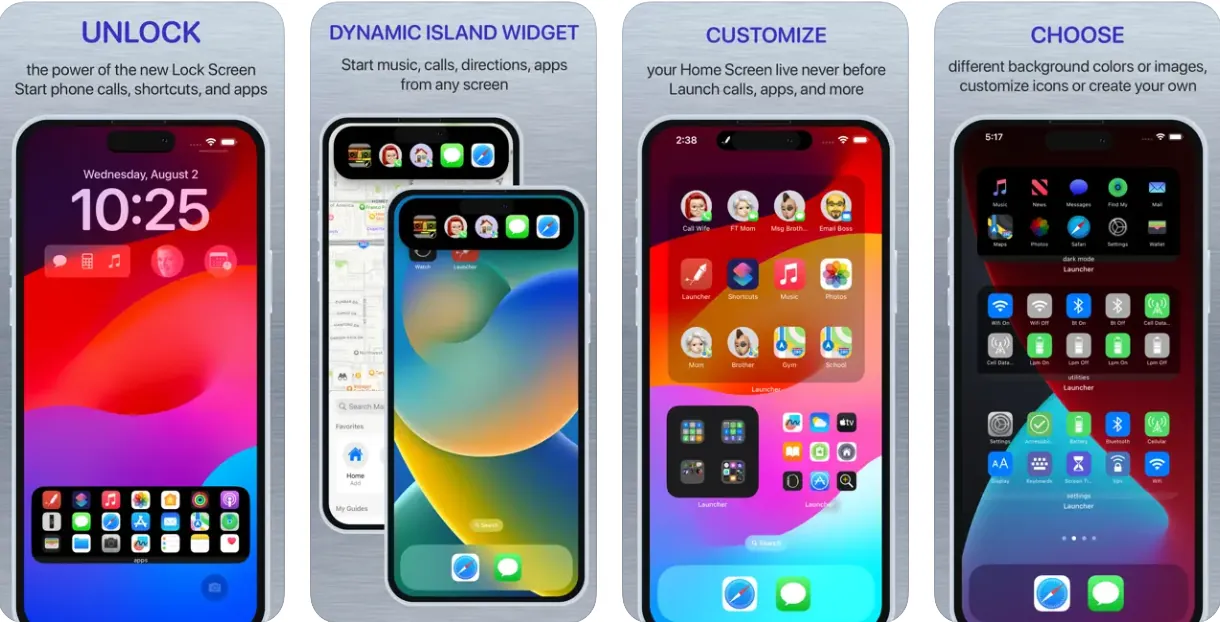
Launcher is one of the most versatile widgets for the iPhone. It’s fully customizable and lets you quickly launch your favorite apps. You can also fine-tune it to call, message, email, access your favorite websites, and even kickstart FaceTime video calls on the Lock Screen or Dynamic Island. The app has the option to customize blur-simulated transparent background images and the ability to download them.
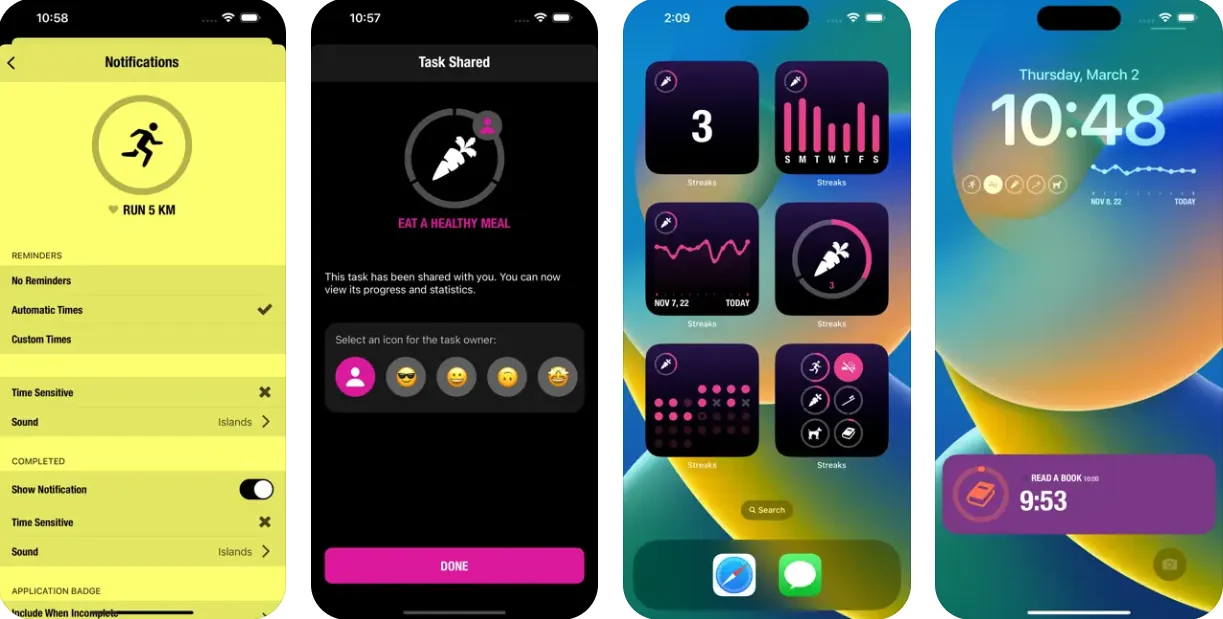
Streaks is an excellent habit-forming app for iPhone in 2026, ideal for anyone looking to build positive habits or break negative ones. It allows users to track up to 24 tasks daily and syncs seamlessly across devices via iCloud. The app supports adding its customizable widget to both the home and lock screens, enhancing accessibility and convenience.
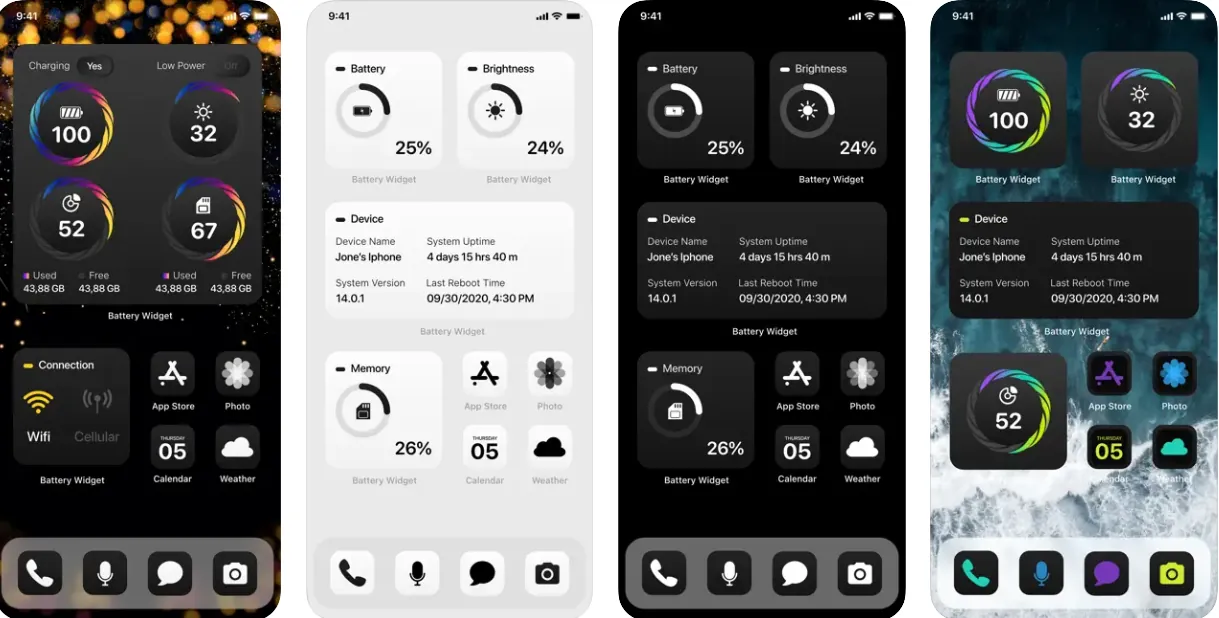
Take control of your iPhone’s performance with Battery Widget & Color Widgets. This versatile app provides essential system monitoring tools, empowering you to track battery health, optimize storage, understand memory usage, and stay connected. See it all at a glance with beautifully designed widgets that blend seamlessly with your iPhone’s home screen.
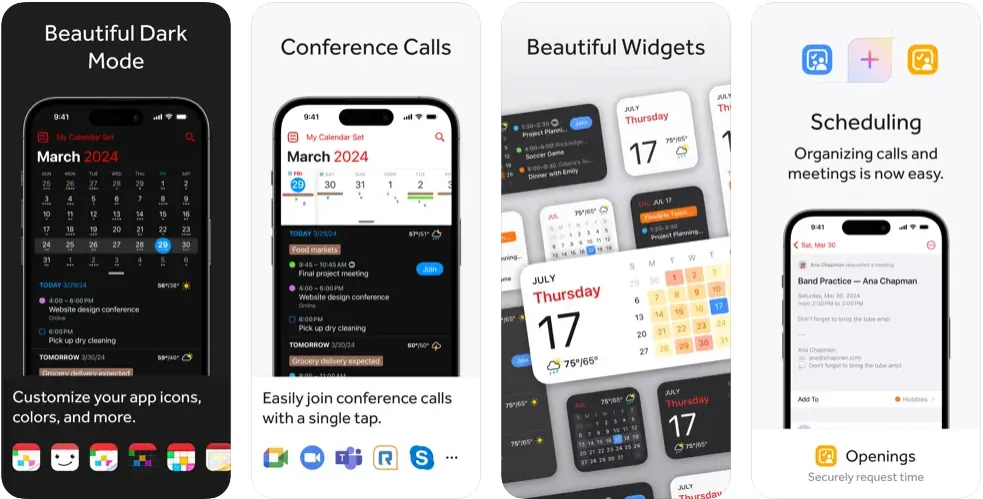
This is one of the most beautiful widgets to show appointments and events scheduled throughout your day. The Fantastical Calendar widget can also show tasks and quickly take a look at upcoming events. Customize widgets to show the current date, add Zoom calls, your event lists for the day, or a monthly calendar. You can also combine widgets like the Event List and monthly calendars. The app is also available for Apple Watch, iPad, and Apple Vision Pro.
📌 Category: Customization 💲 Price: Free | Color Widgets Pro from $4.99
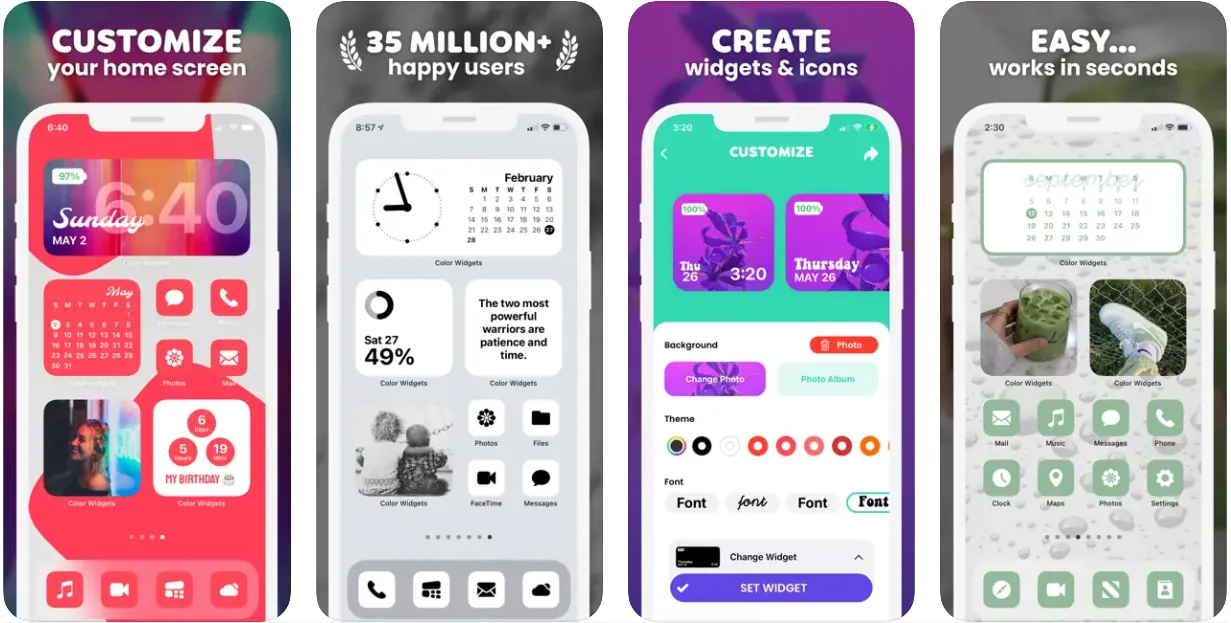
Color Widgets lets you customize your iPhone’s home screen with various widgets and beautiful color themes. Each widget can be edited to detail, such as with the time, date, battery, and apps like Weather, Music, Calendar, and Reminders. Inspire yourself with custom app icons and get a wide variety of themes to match your liking. The Pro widget option offers even more capabilities to improve the user interface and think about new screen customization ideas.
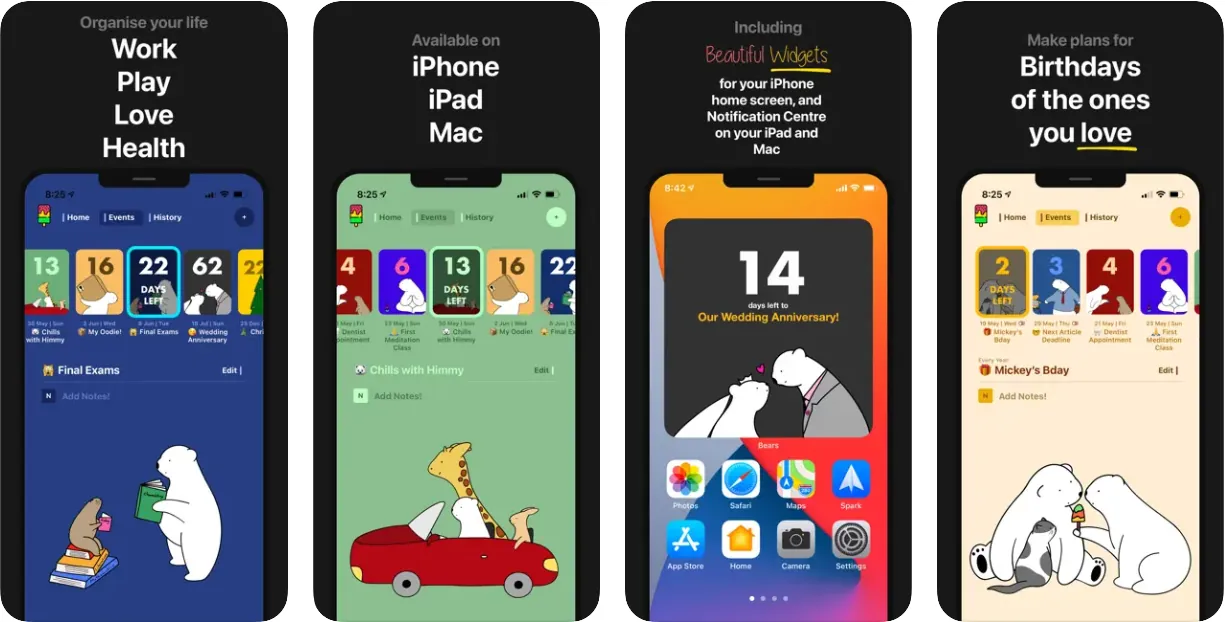
Do you want an app that reminds you of everything? Bears Countdown is a beautiful app with some cute widgets and hand-drawn artwork that will notify you of important dates. You can also write notes for each event and points for important work deadlines.
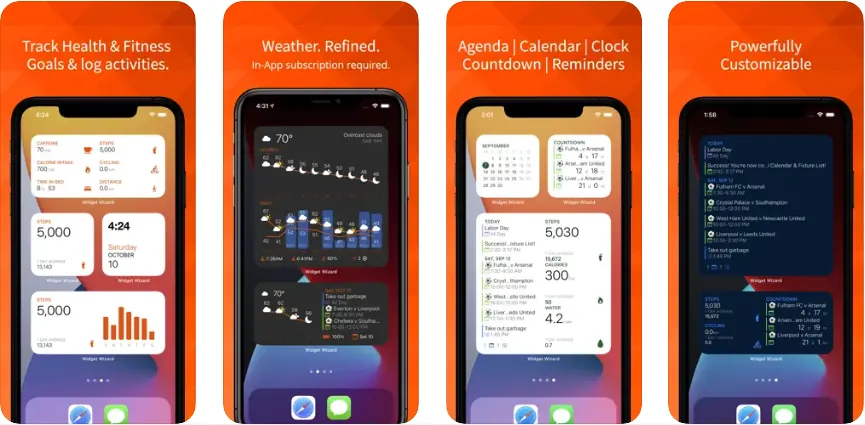
Widget Wizard may not be the most popular app for creating widgets. However, if you need to get some of the best widget ideas for your iPhone’s home and lock screen, this is an excellent choice. You can use it to track your fitness goals, add a weather, agenda, calendar, clock, and reminders widget, and customize them in-depth. In addition, it’s multilingual, and you can completely create your theme with it.
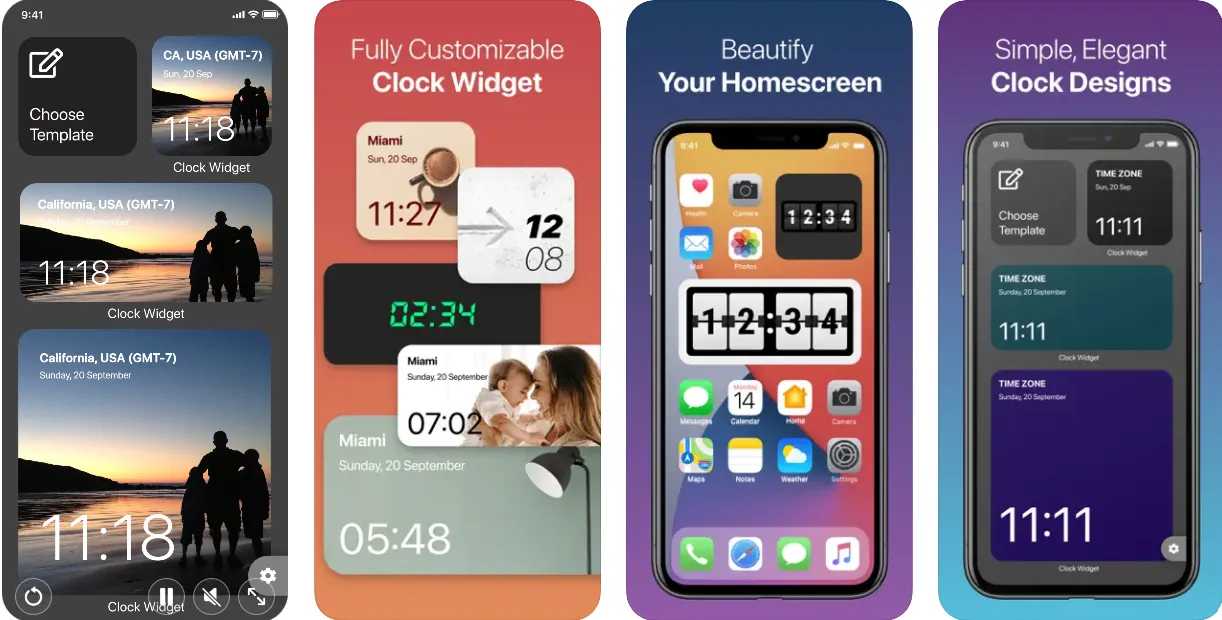
Clock Widget lets you add and personalize beautiful and colorful digital clock widgets on your iPhone’s home screen. There are plenty of layout designs, backgrounds, and text colors to choose from, and you can add your own photos as a clock background.
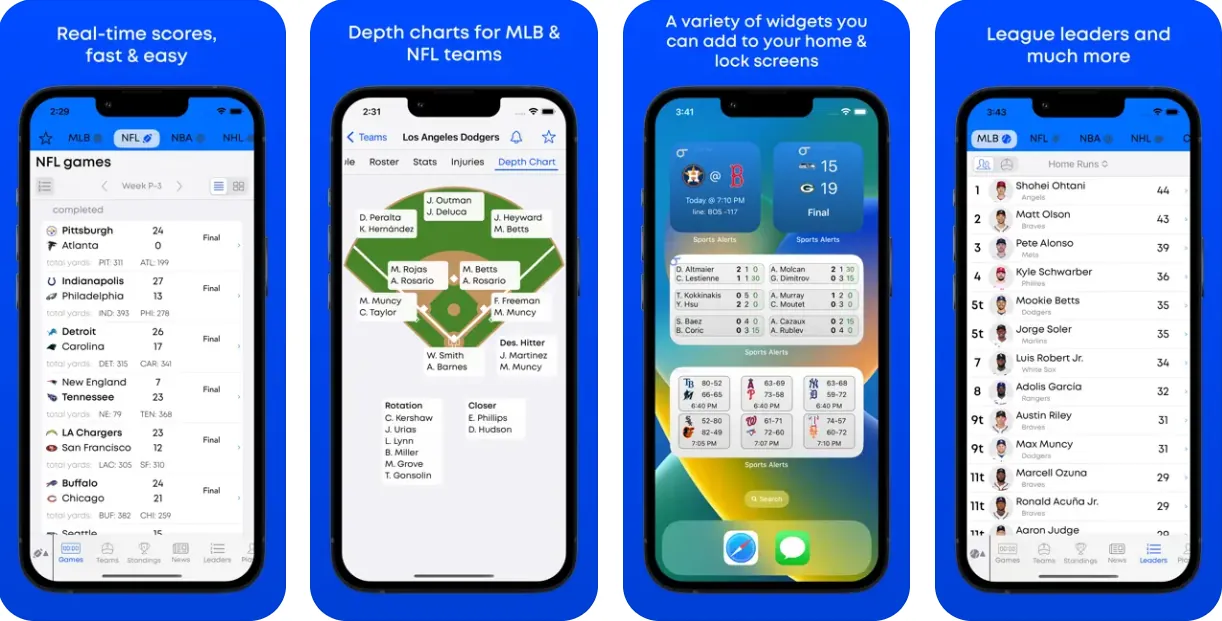
This is a must-have app for sports fans and those following the NFL, NBA, MLB, NHL, and more. You can easily get real-time scores with various widgets you can add to your iPhone’s home screen. You can even get live stat updates in your icon badge and know sports data points without opening the app. Also, you will get notified instantly after an important event, such as a goal, touchdown, or run. It also offers Live Activities with Dynamic Island support.
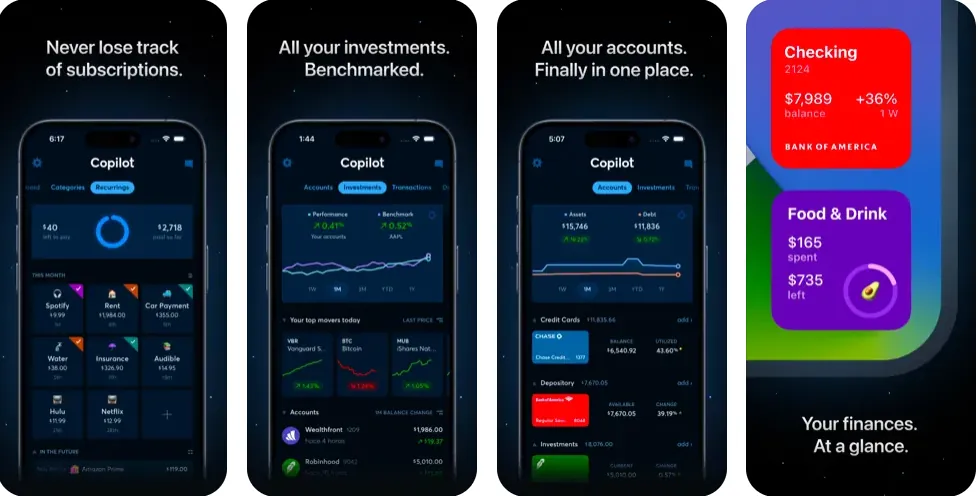
Copilot Money is a polished personal finance companion that simplifies money management directly from your iPhone. With intuitive home screen widgets, you can glance at your spending, investments, and budget progress without opening the app. Designed for iOS and Mac, Copilot connects to your bank accounts securely and offers a one-month free trial to get started.
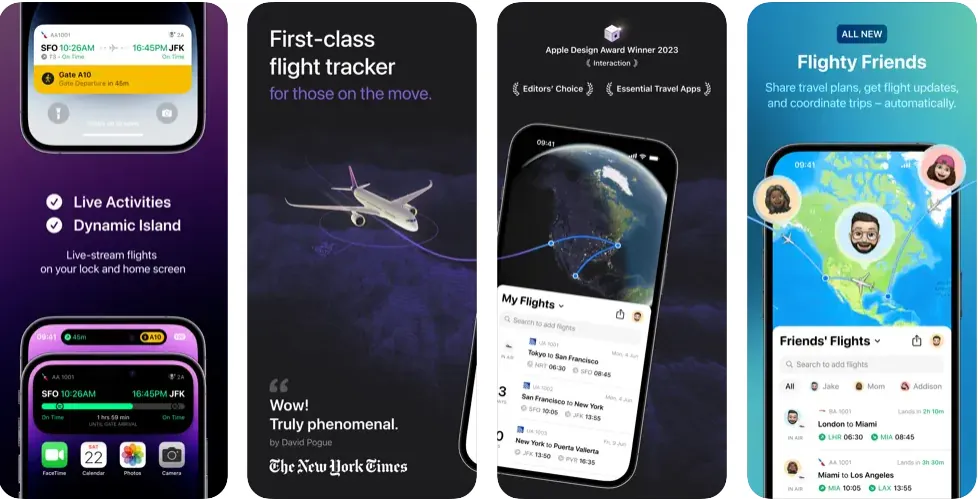
Flighty is one of the best iPhone widgets if you or any of your loved ones fly frequently. With Dynamic Island and Live Activities support, you can see live flights directly on your lock and home screen. Get the industry’s fastest delay alerts, track planes in real time, and effortlessly follow friends’ and family’s flights. Enjoy automated updates with calendar and email sync, taking the stress out of flying.
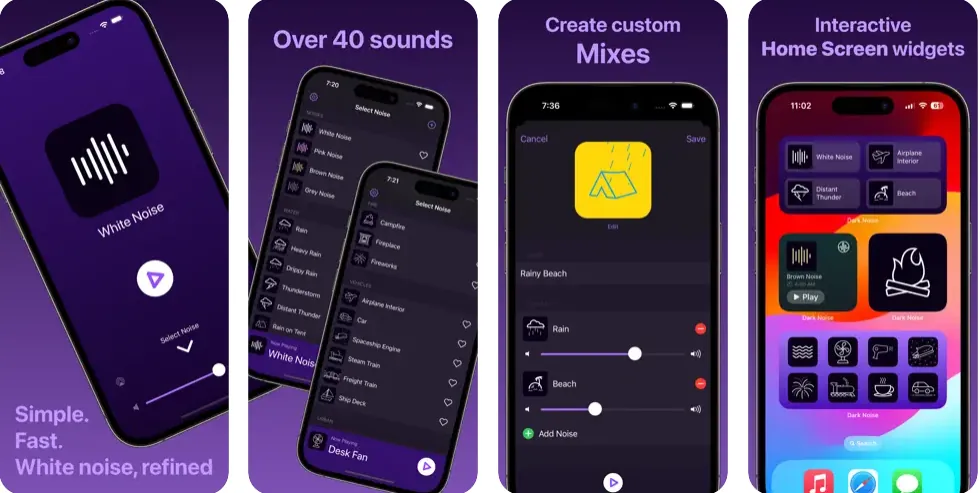
Looking for ambient sounds? With Dark Noise, you can enjoy relaxing ambient soundscapes with 50 built-in options and the ability to create your own custom mixes. Enjoy maximum convenience with widgets, a space-saving mini-player and customizable themes (including True Black) to create the perfect ambience.
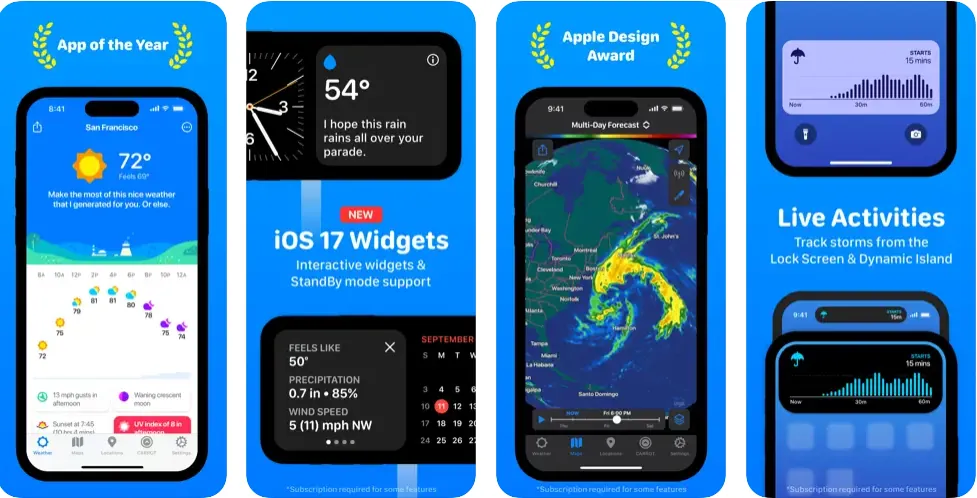
Another excellent weather app! CARROT Weather delivers accurate forecasts with a hilariously twisted personality. Choose your favorite AI companion for an entertaining weather experience. Enjoy customizable themes, interactive widgets, and Live Activities support for up-to-the-minute updates. CARROT Weather prioritizes privacy and offers a Premium Club option for those who want additional weather data sources, notifications, and full customization power.
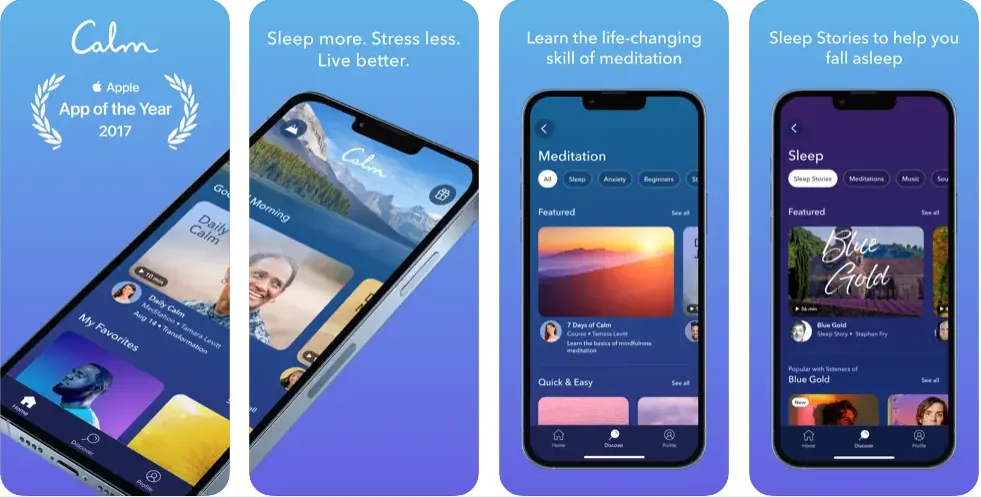
Calm is your ultimate mindfulness companion. Explore calming meditations, sleep-inducing stories narrated by familiar voices, relaxing music, and breathing exercises, easily accessible through helpful widgets. Designed for beginners and experienced meditators alike, Calm helps you reduce stress, improve sleep, and find more focus throughout your day.
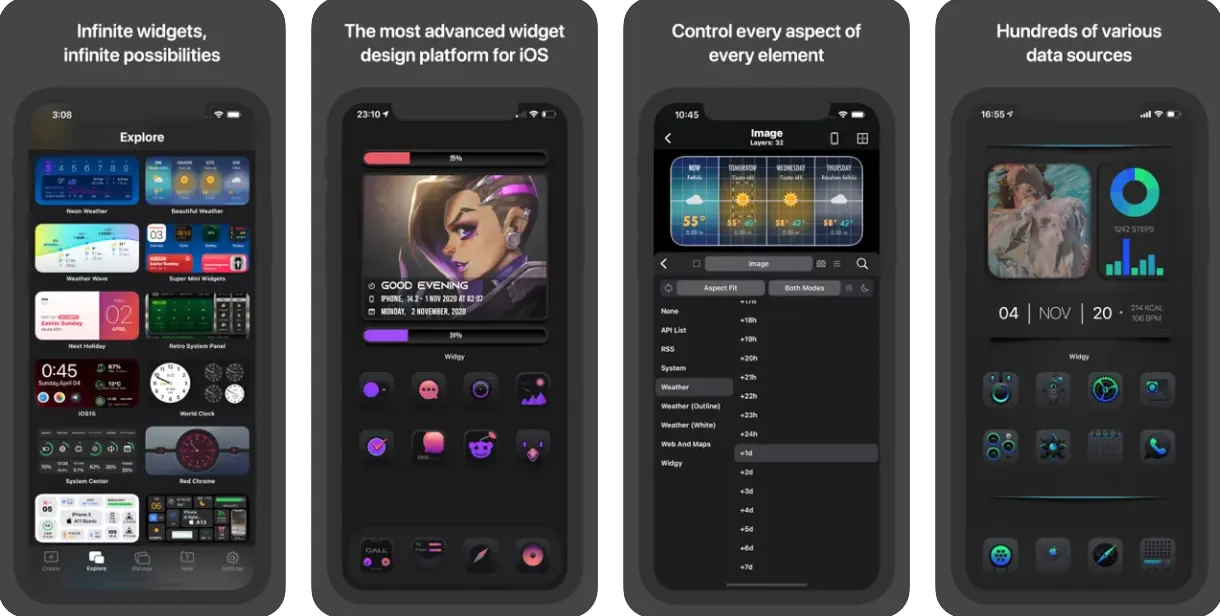
Design truly unique widgets with Widgy that perfectly match your aesthetics, display essential information, and make your home and lock screens reflect your style. With an intuitive editor, a vast array of elements, data sources (system info, weather, and more), and endless customization options, Widgy lets you unleash your creativity. Plus, you can easily share your creations or find inspiration within the thriving Widgy community.
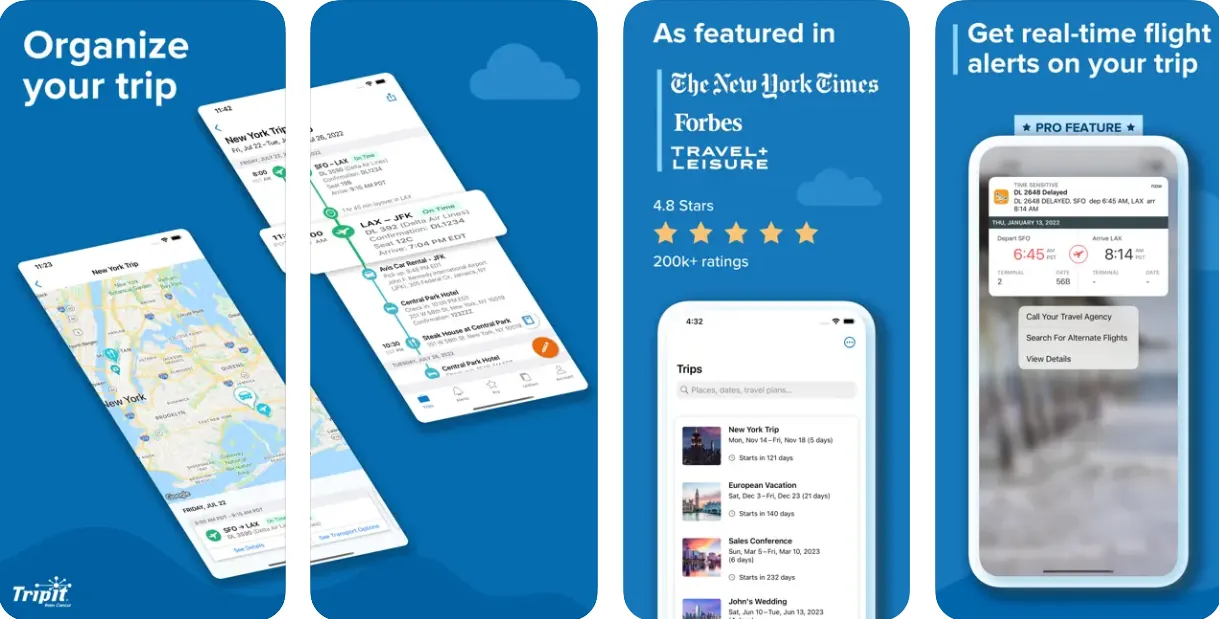
TripIt helps you organize the chaos that often comes with travel planning. This top-rated app automatically creates comprehensive itineraries from your emailed booking confirmations, syncs your travel plans with your calendar, and can even share them. Thanks to interactive widgets, you can see your next trip and planning details at a glance on your home screen. No more frantic searches for flight information or hotel confirmations. TripIt keeps it all in one spot, even offline.
📌 Category: Music 💲 Price: Free | Premium: $11.99 a month
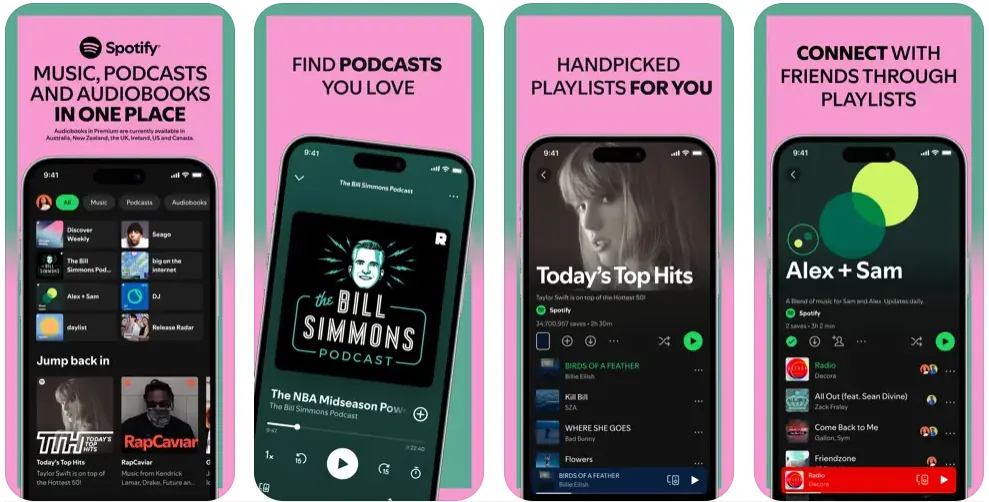
Spotify makes a world of music and podcasts easy to access. Discover new favorites, build playlists, or stream expertly curated mixes. Enjoy personalized recommendations and exclusive content. Plus, you can get instant access to your recently played music and favorite playlists with its convenient widgets, which put your tunes directly on your home screen. For great audio hardware to match, check out our picks for the best wireless earbuds for iPhone.
iPhone widget sizes explained
Before adding widgets, it helps to know the available sizes and what each is best suited for.
Small (2x2): Shows one piece of at-a-glance information: a clock, battery level, or a single stat. Fits four small widgets per page row.
Medium (4x2): Displays a summary view, such as upcoming calendar events or current weather with a forecast strip.
Large (4x4): Ideal for rich content like a photo grid, a detailed weather map, or a full task list.
Extra Large (4x4, iPad only): Available on iPad for even more data-dense views.
You can mix sizes on the same page. Smart Stacks let you stack multiple widgets into one slot and swipe between them, which is a practical way to keep your home screen tidy while surfacing different information at different times of day.
How to add a widget to your iPhone’s home screen
Enter jiggle mode: Touch and hold an empty area on your Home Screen until the apps start to jiggle.
Tap the Add button: Tap the plus button (+) in the upper-left corner of the screen.
Select a widget: Scroll through the list of available widgets or search for a specific one. Tap on the widget you want to add.
Choose a size: Some widgets offer different sizes. Swipe left or right to preview the sizes and select the preferred one.
Add the widget: Tap "Add Widget."
Position the widget: You can drag the widget to reposition it on the Home Screen.
Exit jiggle mode: Tap "Done" in the upper-right corner of the screen.
How to add a widget to your iPhone’s lock screen
Wake up your iPhone: Press the side button or swipe up from the bottom of the screen.
Enter edit mode: Touch and hold the Lock Screen until the "Customize" button appears at the bottom of the screen.
Tap "Customize": This will bring up the Lock Screen customization options.
Tap the widget area: You’ll see a box above and below the clock. Tap either of these boxes to open the widget selector.
Choose your widgets: You can tap the suggestions at the top or scroll through the app list to see available widgets.
Add the widget: Tap a widget to add it, or drag and drop it to place it precisely.
Exit edit mode: Tap "Done" in the upper-right corner, then tap the screen again to leave the customization view.
How to create a custom widget in iOS
You need custom widgets to edit your app icons. Apps like Widgetsmith and Color Widgets are some of the most popular options. Here’s a guide using Widgetsmith:
Download and install: Get Widgetsmith from the App Store. It’s a popular app specifically designed for widget customization.
Choose a size: Open the app and select the widget size you want to create (small, medium, or large).
Customize: Widgetsmith offers a variety of styles, including:
Time and Date: Display the current time and date in various formats.
Calendar: Show upcoming events from your calendar.
Reminders: Display reminders from your Reminders app.
Photos: Showcase photos from your library or albums.
Weather: Show current weather conditions.
Health & Activity: Display data from the Health app.
Tides: Show tide information for your location.
Astronomy: Display astronomical information like moon phases and sunrise/sunset times.
Fine-tune: Customize fonts, colors, backgrounds, and borders to match your aesthetic preferences.
Add to Home Screen: Follow the steps mentioned earlier to add the Widgetsmith widget to your Home Screen. Choose the customized widget you created when prompted.
Frequently asked questions about iPhone widgets
How do I add a widget to my iPhone?
Touch and hold an empty area of your Home Screen until the apps jiggle, tap the plus button in the top-left corner, pick a widget, choose a size, and tap Add Widget. For the Lock Screen, touch and hold the Lock Screen, tap Customize, and tap the widget box above or below the clock.
What are the best free iPhone widgets?
Widgetsmith, Color Widgets, and ScreenKit are the best free widget apps for customizing your home and lock screens, and all three offer paid tiers only for extra styles. Notion, Spotify, and Google Calendar also ship capable widgets at no cost.
Can I add widgets to the iPhone Lock Screen and StandBy?
Yes. Lock Screen widgets require iOS 16 or later and sit above or below the clock. StandBy, added in iOS 17, shows full-screen widgets when the iPhone charges on its side, which is useful as a nightstand clock or dashboard.
Do widgets drain my iPhone battery?
Most widgets have a minimal impact on battery life because iOS controls how often they refresh in the background. Widgets that update frequently, such as live weather radar or real-time sports scores, use slightly more power. If battery life is a concern, favor widgets that refresh on a schedule rather than in real time.
Which iPhones support home screen and lock screen widgets?
All iPhones running iOS 14 or later support home screen widgets. Lock Screen widgets require iOS 16 or later, and interactive widgets require iOS 17 or later. Any iPhone from the iPhone 7 onward supports the full widget experience available today.
What is the difference between home screen and lock screen widgets?
Home screen widgets sit on your main app pages, can be small, medium, or large, and can respond to taps from iOS 17 onward. Lock Screen widgets are smaller, appear above or below the clock, and show compact data like your next calendar event or current temperature.
How many widgets can I add to my iPhone home screen?
There is no hard limit on the number of widgets you can place across your home screen pages. Each page follows a grid layout, so the constraint is available space. You can also use Smart Stacks to layer multiple widgets in a single slot and swipe between them.
What is a Smart Stack widget?
A Smart Stack is a swipeable collection of widgets that occupies a single widget slot on your home screen. iOS uses on-device intelligence to surface the most relevant widget based on the time of day, your location, and your usage patterns. You can also scroll through the stack manually.
Conclusion
The 20 apps above represent the best iPhone widgets available in 2026, spanning productivity, customization, health, travel, and entertainment. Do not hesitate to mix and match: try different sizes, experiment with Smart Stacks, and explore the lock screen widget slots that Apple has continued to expand. Tools like Widgetsmith and Color Widgets make it easy to build a setup that is both functional and visually distinctive.
If you are shopping for an iPhone that runs the latest widget features, browse our deals on refurbished iPhones that run iOS 18 and newer at RefurbMe. These models also update to iOS 27, so you get StandBy and interactive widgets. Every device comes with a warranty and ships in perfect working condition.
from $92in Fair Refurbished iPhone compatible with iOS 18 · 1,226 configurations at 8 sellers. Checked Oct 27, 7:16 PM EDT.
Last updated: Sep 15, 2026 ·
First published: Dec 10, 2024
Simo Elalj
CEO and Founder at RefurbMe. I made this project back when I was 15 when I had to wake up at 2am to buy my own refurbished Macbook Pro. Passionate about circular economy, great UX and goats.