
Widgets can change how you use your Mac. Since macOS Sonoma landed in September 2023, you can place them directly on your desktop, not just in Notification Center, making it easier than ever to keep key information at a glance without opening a single app. macOS 26 Tahoe carries that desktop placement forward unchanged, and the steps below are written against it. Whether you need help staying on schedule, tracking your battery, or simply personalizing your workspace, the right widget setup pays dividends every day. We've rounded up the ten best Mac widgets in 2026, from powerful third-party picks to the underrated built-in tools already on your machine.
The best Mac widgets at a glance
| App | Highlight | Price |
|---|---|---|
| Color Widgets | Extensive customization options | Free | Color Widgets Pro from $4.99 |
| Fantastical | Advanced calendar and task management | Free | Flexibits Premium: $6.99/month |
| World Clock Widget | Multiple city time zone tracking | Free |
| Todoist | Powerful task management and organization | Free | Todoist Pro: $6.99/month |
| Battery Health | Detailed battery health information | Free | Power History: $9.99 |
| Screen Time | Track and manage screen time across devices | Free |
| Weather | Up-to-the-minute weather updates | Free |
| Widgetter | Real-time system data monitoring | Free | Monthly: $4.99 |
| WaterMinder | Track water intake and stay hydrated | Free | Premium from $2.99/month |
| One Thing | Keep your top task in the menu bar | Free |
1. Color Widgets
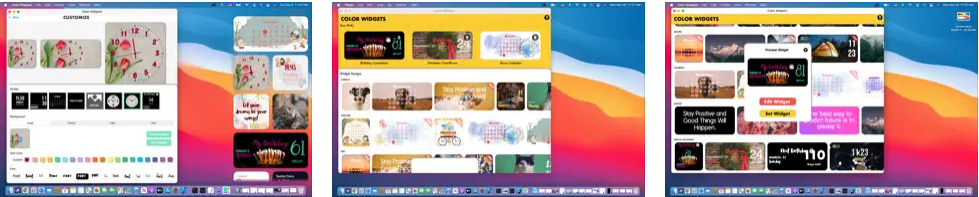
Color Widgets elevates your Mac's aesthetic by offering an expansive library of widgets with the convenience of deep customization. Jumpstart your design by choosing from beautiful pre-made layouts or building something distinctly yours. From methodical tools like calendars, clocks, and battery indicators to personal touches like photo frames and inspiring quotes, Color Widgets enhances both the visual appeal and functionality of your desktop with minimal effort. With the desktop widget support macOS Sonoma introduced, you can pin Color Widgets directly on your wallpaper for an always-visible personal touch.
✨ Top features
- Vast selection of predesigned widgets
- Extensive customization options
- Simple user interface for creating widgets
- Functional widgets like calendars, clocks, and batteries
- Aesthetic elements for personalization
💲 Price: Free | Color Widgets Pro from $4.99
⏩ Download Color Widgets in the Mac App Store
2. Fantastical
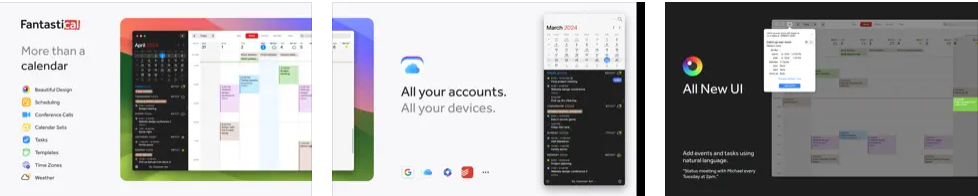
Fantastical is a top-tier calendar app for Mac users who want a more robust and customizable experience than the default Calendar app. Its polished interface and natural language input make scheduling feel effortless, while multiple widget sizes let you surface the right level of detail: your next event or a full 10-day view on your desktop.
✨ Top features
- Advanced calendar and task management
- Customizable widget designs for versatility
- 10-day weather forecast integration
- Natural language input for easy event creation
- Various widget sizes for different needs
💲 Price: Free | Flexibits Premium: $6.99/month
⏩ Download Fantastical in the Mac App Store
3. World Clock Widget
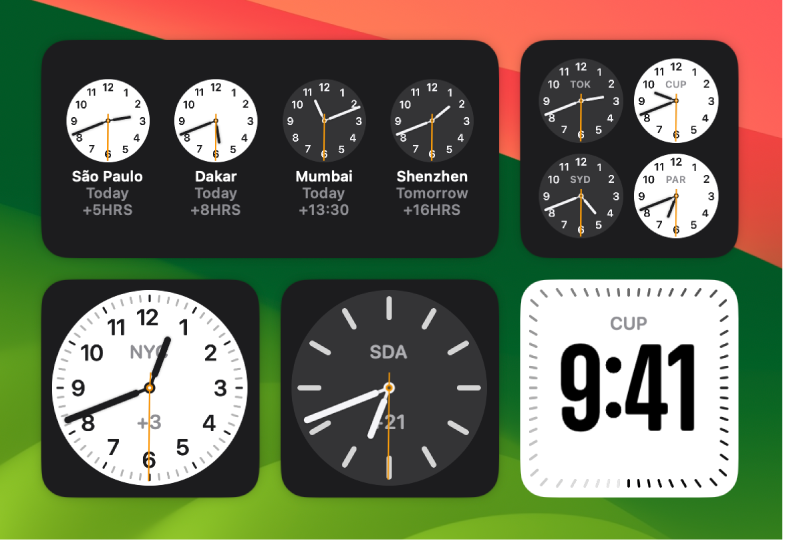
The World Clock widget is a practical tool for anyone managing multiple time zones. Keep track of local time in cities around the globe right from your Mac desktop, whether you're scheduling meetings with international clients or staying in sync with friends and family abroad. It also includes a stopwatch, alarm, and timers that can be accessed with a single click, no app launch required.
✨ Top features
- Multiple city time zone tracking
- Interactive functionalities such as alarms and timers
- Customizable display for preferred cities
- Free to use with no additional downloads
💲 Price: Free
⏩ It comes pre-installed
4. Todoist
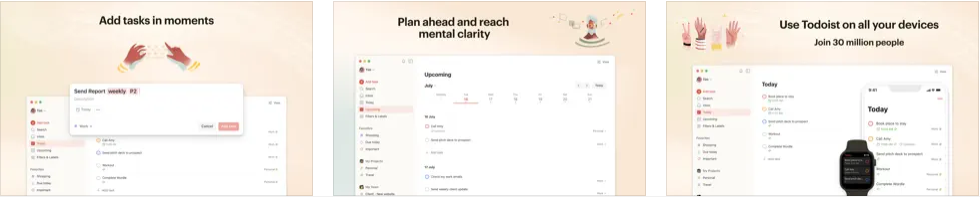
Todoist stands out for anyone who wants to master task management on their Mac. It is more than just a to-do list. It's a full productivity system designed to organize your work, whether it's daily errands, complex projects, or long-term goals. With its widget, you can monitor your task list directly from the desktop without ever digging through apps. You can also sync Todoist with the powerful all-in-one productivity suite Notion to keep everything connected.
✨ Top features
- Task categorization with priorities and due dates
- Collaborative project management for teams
- Projects and sections for structured organization
- Desktop widget for at-a-glance task viewing
- Reminders and recurring tasks for maintaining habits
💲 Price: Free | Todoist Pro: $6.99/month ($59.99/year)
⏩ Download Todoist in the Mac App Store
5. Battery Health

Battery Health is an essential widget for anyone who wants to extend their Mac's battery life over the long term. Rather than relying on the basic battery indicator built into macOS, this app goes deeper, surfacing charge cycle counts, temperature readings, power usage patterns, and historical data that can reveal degradation trends before they become problems. For MacBook users who depend on all-day battery life, it's invaluable.
✨ Top features
- Detailed battery health information
- Real-time battery performance tracking
- Temperature and power usage monitoring
- Historical data analysis for battery usage
- Notifications for battery life milestones
💲 Price: Free | Power History: $9.99
⏩ Download Battery Health in the Mac App Store
6. Screen Time
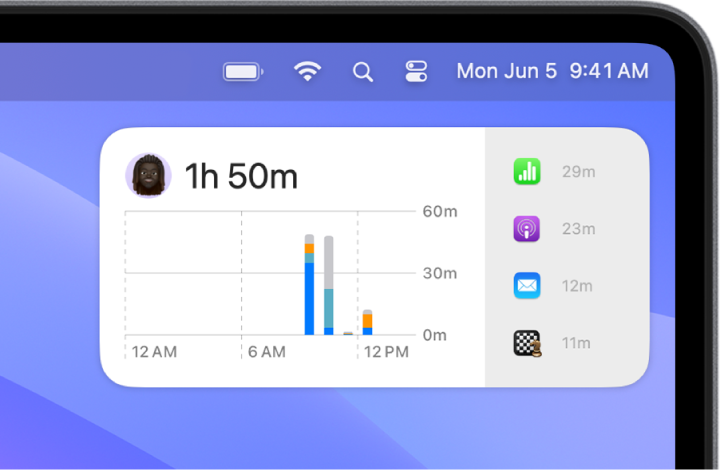
Screen Time is not just a widget but a window into your digital habits. Pre-installed on every Mac, it offers an unobtrusive yet revealing look at where your hours go across all your Apple devices. By surfacing your usage patterns, down to individual apps and categories, it empowers you to make more deliberate decisions about how you spend your time. The widget is available in three sizes, making it easy to integrate into any desktop layout.
✨ Top features
- Cross-device time tracking for a holistic view
- Detailed app usage statistics
- Customizable downtime schedules
- Set limits for specific apps or categories
- Usage data accessible in three widget sizes
💲 Price: Free
⏩ It comes pre-installed
7. Weather
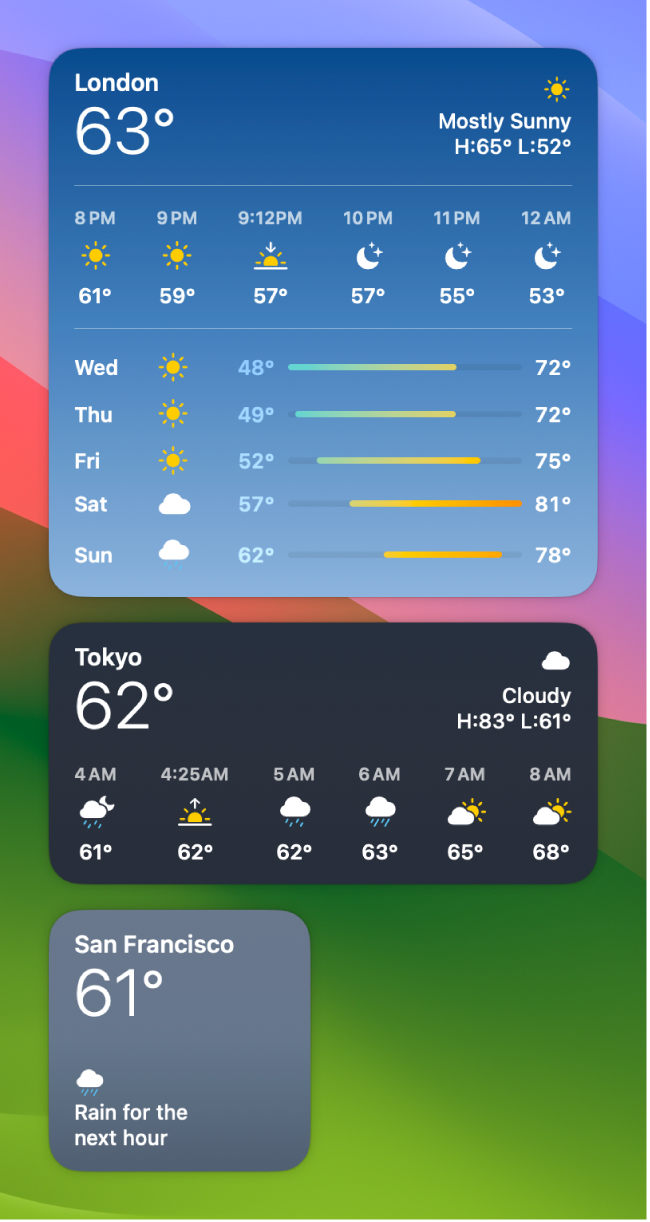
The Weather widget is your on-demand meteorological briefing, delivering up-to-the-minute forecasts without the need to launch an app or open a browser tab. Part of the desktop widget collection macOS Sonoma opened up, it keeps your schedule precise and your wardrobe sensible by surfacing forecasts, air quality data, and moon phases right on your desktop. For anyone who plans their day around the weather (commuters, outdoor workers, travelers), it's one of the most practical built-in widgets available.
✨ Top features
- Current temperature and forecast display
- Sunrise and sunset timings
- Air quality index
- Multiple location settings
- Lunar panel for moon phase tracking
💲 Price: Free
⏩ It comes pre-installed
8. Widgetter

Widgetter can transform your Mac desktop into a personalized workstation with a comprehensive suite of widgets. This app goes beyond simple aesthetics, providing real-time system data and essential controls in an easily accessible format. Monitor your Mac's performance, track important metrics, and stay organized with customizable widgets that integrate seamlessly into your workflow, whether you pin them on the desktop or tuck them into Notification Center.
✨ Top features
- Customizable widgets for date, time, calendar, weather, battery, music, and more
- Real-time system data monitoring (CPU, RAM, HDD/SSD, internet speed)
- Flexible widget sizes and arrangement options
- Always-on-top feature for essential widgets
- Huge collection of 4K and 5K wallpapers
💲 Price: Free | Monthly: $4.99
⏩ Download Widgetter in the Mac App Store
9. WaterMinder

WaterMinder makes it easy to stay hydrated throughout the day, a habit that's easy to overlook when you're deep in work. This intuitive widget tracks your water intake and sends reminders based on your body weight or personal hydration goals. With its clean visual interface and cross-device sync across all your Apple devices, WaterMinder turns a simple health habit into something that actually sticks. The app itself is free to download, and a Premium subscription unlocks the full history, extra cup presets, and the higher tiers.
✨ Top features
- Visual representation of your current hydration level
- Customizable cups and reminders
- History and graph tracking over time
- Support for various units (US oz, UK oz, L, and mL)
- Syncs data across all your Apple devices
💲 Price: Free | Premium from $2.99/month ($14.99/year, $29.99 lifetime)
⏩ Download WaterMinder in the Mac App Store
10. One Thing
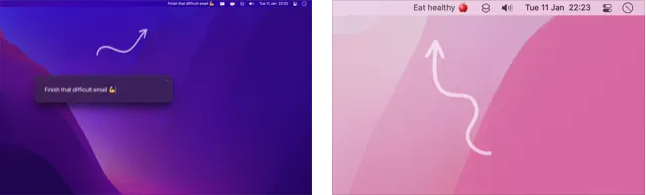
One Thing is a minimalist productivity app built on a single premise: keep your most important task visible at all times. Rather than offering a long to-do list that competes for your attention, it places one item, and only one, in your menu bar as a constant, unobtrusive reminder. For anyone prone to context-switching or losing sight of their top priority, it's a quietly powerful tool.
✨ Top features
- Supports Markdown for text styling (bold, italic, strikethrough, links)
- Integrates with Shortcuts, share extension, system service, and scripting
- Drag-and-drop support for adding tasks
- No ads
💲 Price: Free
⏩ Download One Thing in the Mac App Store
How to add widgets on your Mac (macOS 26 Tahoe)
Desktop widgets arrived with macOS Sonoma and work the same way in macOS 26 Tahoe, the release Apple shipped on 15 September 2025. The steps below follow Apple's current Mac user guide.
Add widgets to your desktop:
- Control-click (right-click) your wallpaper and choose Edit Widgets.
- Search the widget gallery for a specific app, or click a category to see its available widgets.
- Click a widget to add it automatically, or drag it to a specific spot on your desktop.
- Click Done when finished.
Add widgets to Notification Center:
- Click the date and time in the menu bar to open Notification Center.
- Scroll to the bottom and click Edit Widgets.
- Select or drag the widgets you want to add.
- Click Done.
Enable iPhone widgets on your Mac: Go to System Settings > Desktop & Dock > Widgets and turn on Use iPhone widgets. Your iPhone's compatible widgets will then appear in the widget gallery. Apple lists three conditions for this to work: your iPhone runs iOS 17 or later, you are signed in to the same Apple Account on both devices, and your iPhone sits near your Mac or on the same Wi-Fi network.
Conclusion
Mac widgets in 2026 are more flexible than ever. Desktop placement has been part of macOS since Sonoma in 2023 and carries through macOS 26 Tahoe, so there's never been a better time to build a widget setup that genuinely matches the way you work. Whether you want to personalize your desktop with Color Widgets, stay on top of your schedule with Fantastical, manage tasks with Todoist, or simply keep an eye on battery health and hydration, there's a combination that will sharpen your daily routine. Start with the built-in options (Weather, Screen Time, and World Clock are already on your machine), then layer in third-party tools to fill the gaps.
Looking for a Mac to put all these widgets on? Check out our guide to the best Macs for AI workloads, explore whether a MacBook is worth it, or browse our picks for the 21 best Mac apps to pair with your widget setup.
Are you in the market for a new MacBook? RefurbMe is your go-to platform for finding the perfect refurbished MacBook at a discounted price. With a wide selection of models and a user-friendly interface, RefurbMe makes it easy to compare prices and features across multiple sellers, all backed by a warranty for peace of mind.
Timing matters if you want the widgets and the machine. Across every MacBook release RefurbMe tracks, the median gap between Apple's launch day and the first refurbished unit appearing in stock is 168 days, as of August 2026 (RefurbMe Time-to-Refurb data). Roughly five and a half months after a launch is when the current generation comes into refurbished reach.
Browse our current Apple silicon MacBook deals below. Every M1 or later model also runs macOS 27 Golden Gate, released on 14 September 2026, while Intel Macs stop at macOS 26 Tahoe.

Apple M2 with 8-core CPU, 10-core GPU
8GB memory • Space Gray
with Touch Bar • 2022 release
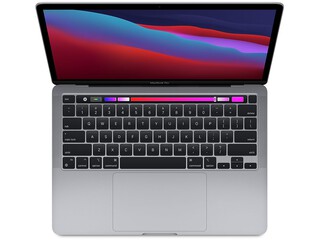
Apple M1 with 8-core CPU, 8-core GPU
8GB memory • Space Gray
with Touch Bar • 2020 release

Apple M1 with 8-core CPU, 7-core GPU
8GB memory • Space Gray
with Touch Id • 2020 release
Happy shopping!
FAQ
Last updated: Sep 15, 2026 · First published: Dec 20, 2024